

Table of Contents
- What Is Lightning Assist?
- How Does Lightning Assist Work?
- What Are the Core Features?
- How Good Is the AI Integration?
- How Does Voice Typing (Push-to-Talk) Work?
- Lightning Assist Pricing: What Does It Cost?
- How Does Lightning Assist Compare to TextExpander, Espanso, and aText?
- Lightning Assist Review: What Are the Downsides?
- Who Should Buy Lightning Assist?
- Final Verdict
- FAQ
Introduction
I type the same phrases dozens of times a day. Client greetings, support replies, code snippets, email sign-offs, Slack shortcuts. I never counted until I sat down with a stopwatch one afternoon and found I was spending 40 to 50 minutes every single day typing things I had already typed before. That was the moment I started looking for an AI text expander that could do more than basic find-and-replace.
Lightning Assist showed up on my radar through a SaaSPirate listing. A cross-platform text expander with built-in AI commands and push-to-talk voice typing, all in one native desktop app. At $5.99 per month, the pitch was simple: stop retyping, start working.
I have tested more than 500 SaaS tools over the past 15 years. The text expander AI category is one where 90% of the options look great on the landing page and fall apart inside two weeks. So I installed Lightning Assist on my Windows workstation, set up about 30 snippets, pushed the AI features through real work scenarios, and ran it for a full evaluation.
In this Lightning Assist review, I will walk you through what the tool actually does, how the AI features hold up in practice, what the pricing looks like compared to competitors, and whether it is genuinely worth paying for or whether you are better off with a free alternative like Espanso or sticking with the industry default TextExpander.
If you have been looking for the best AI deals on productivity tools, this is one worth understanding before you spend.
Key Takeaways
- Lightning Assist is a solid AI text expander that combines snippet expansion, AI rewriting commands, and push-to-talk voice dictation into a single native desktop app. It works across Windows, macOS, and Linux without requiring browser extensions or app-specific plugins.
- The AI commands are the real differentiator. You can set up custom hotkeys that trigger AI rewrites, grammar fixes, tone shifts, or summaries on any selected text. This saves more time than basic snippet expansion alone.
- Push-to-talk voice typing works well for quick inputs but is not a replacement for dedicated transcription software. It is best suited for short dictation bursts like Slack messages, quick notes, or filling out forms.
- At $5.99 per month, the pricing is fair for the feature set you get, especially compared to TextExpander’s higher team pricing. But AI features require separate credit purchases, which adds up if you rely on them heavily.
- The main limitation is the AI credit model. Credits are purchased separately, do not come bundled with the subscription, and AI features pause once your balance hits zero. Heavy AI users need to budget for this on top of the monthly fee.
The best productivity tool is the one you actually use every day, not the one with the longest feature list. — Alston Antony
What Is Lightning Assist?
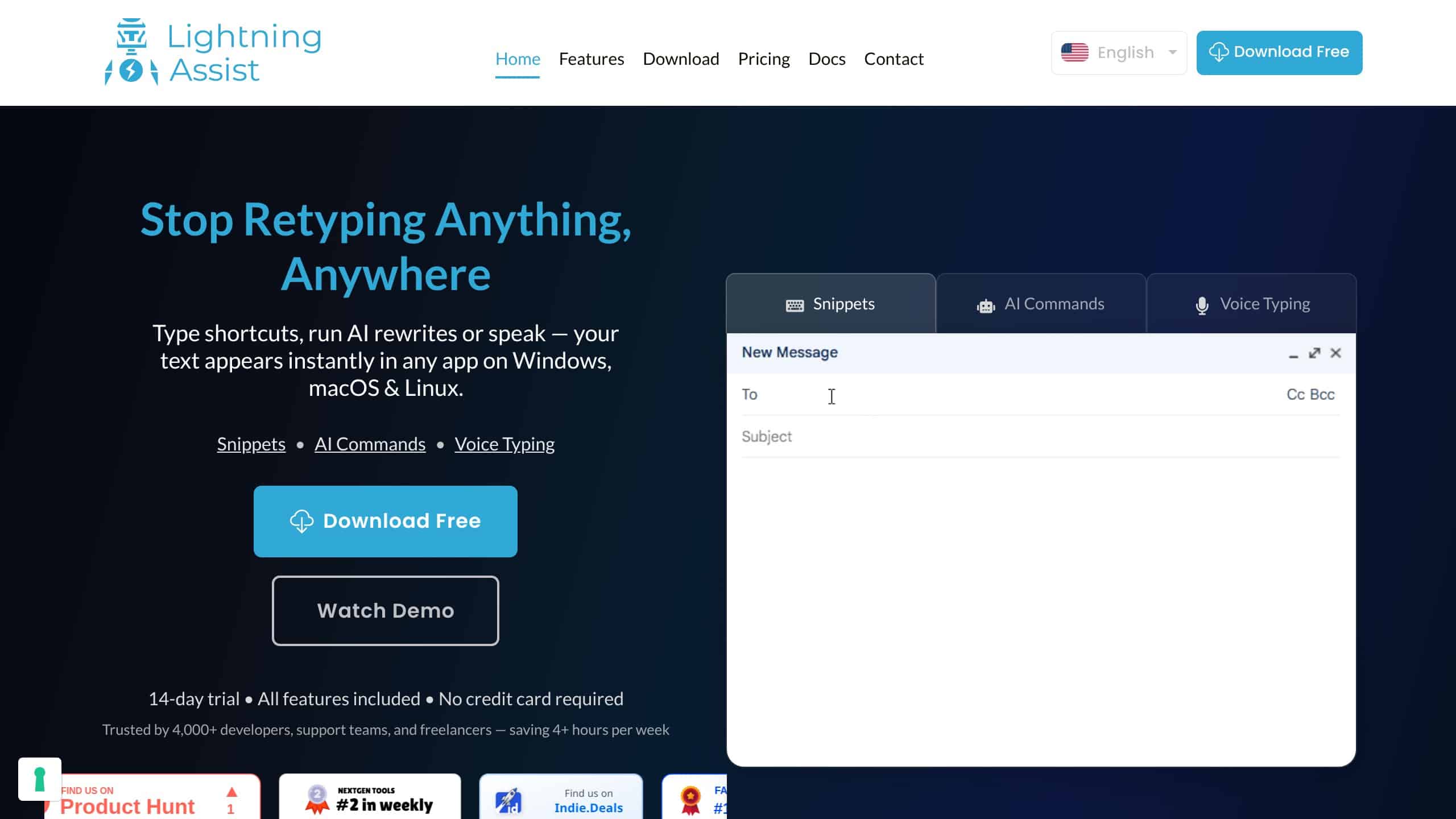
Lightning Assist is a cross-platform desktop text expander built by Lightning Assist S.R.L., a company based in Iasi, Romania. The tool runs natively on Windows, macOS, and Linux, and its core job is simple: you create text snippets, assign them to hotkeys or trigger keywords, and the tool inserts the full text wherever your cursor sits.
What separates Lightning Assist from older text expanders is the AI layer. On top of standard snippet expansion, the tool includes AI-powered rewriting commands, an AI chat interface, and push-to-talk voice dictation. These are not browser-based add-ons. They run at the system level, which means they work inside email clients, IDEs, terminals, Slack, Word, Outlook, Gmail, and every other desktop app where you type.
The tool positions itself for a specific audience: developers, support agents, sales reps, freelancers, and marketers who spend hours per day repeating the same text patterns. According to their own estimates, the average user saves roughly 54 minutes per day and 4.5 hours per week. That number will vary depending on how many snippets you set up and how repetitive your actual work is, but the direction is right. Text expansion tools as a category have consistently proven to save measurable time for anyone who types the same things repeatedly.
Lightning Assist is currently trusted by more than 4,000 professionals and carries a 4.8 out of 5 rating from 150 reviews. It has been featured on Product Hunt, SaaSHunt (top daily winner), BetaList, and SaaSPirate.
If you want to explore tested AI deals on tools like this, ZPlatform.ai tracks current offers and verdicts so you can decide before you spend.
How Does Lightning Assist Work?
The setup process takes less than five minutes. Download the installer for your platform, run it, and the app sits in your system tray.
Step 1: Create Your Snippets
Open the Lightning Assist dashboard and create your first snippet. You define two things:
- A trigger — either a hotkey combination (like Ctrl+Shift+1) or a keyword that you type (like
/greeting) - The expanded text — whatever you want inserted. This can be plain text, formatted text, or even multi-line blocks with variables
For example, I set up /sig to insert my full email signature, /meet to paste my Zoom meeting link with a standard intro paragraph, and /pr to expand into a pull request template with placeholder fields.
Step 2: Use the Quick Access Window
Press Alt+C (the default hotkey) to open the Quick Access Window. This is a search bar overlay that lets you find any snippet by name or tag without remembering the exact trigger. Type a few characters, select the snippet from the dropdown, and it inserts into whatever app you are working in.
This is where Lightning Assist starts pulling ahead of simple clipboard managers. When you have 50 or more snippets, remembering every hotkey becomes impractical. The search overlay solves that problem.
Step 3: Configure AI Commands
This is the part that moves the tool beyond traditional text expansion. You create AI commands that trigger on hotkeys. Select text in any app, press your AI hotkey, and Lightning Assist sends that text through an AI model for rewriting, grammar correction, summarization, or any custom prompt you define.
The AI processing happens in real time, and the enhanced text replaces or appends to your selection. No copy-pasting between apps, no switching to ChatGPT in a browser tab.
Step 4: Enable Voice Typing
Hold a configured hotkey, speak, and release. Lightning Assist transcribes your speech and pastes the text into the active app. The push-to-talk model is clean and simple. No “start recording” buttons, no app switching, no separate dictation window.
What Are the Core Features?
Let me break down each major feature based on actual use.
Text Snippets and Hotkeys
This is the foundation. You create snippets, assign triggers, and the tool expands them on demand. Lightning Assist handles this well:
- Unlimited snippets on the paid plan
- Folder organization to group snippets by category (support replies, code blocks, email templates)
- Variable placeholders that prompt you to fill in dynamic values before insertion
- Terminal-specific snippets for PowerShell, Bash, and CMD, which is a feature most text expanders ignore entirely
The terminal snippet support deserves attention. If you work in the command line regularly, being able to trigger multi-line scripts or complex commands with a short hotkey is a significant time saver. I tested this with PowerShell on Windows, and it worked without the input lag or formatting issues I have experienced with other expanders in terminal environments.
When I first started testing, I set up 30 snippets covering my most-typed patterns: email greetings, Slack status updates, git commands, WordPress shortcodes, and meeting notes templates. Within a week, I had expanded that to 65 snippets. The tool did not slow down or behave differently with the larger library.
Quick Access Window (Alt+C)
The search overlay is one of the best parts of Lightning Assist. Press Alt+C from any app, type a few letters, and your matching snippets appear in a dropdown. Select one and it inserts immediately.
Several user testimonials highlight this as a standout feature. Technical Lead Sorin T. called the quick access window “a game changer” for how it surfaces the right snippet without requiring you to memorize hotkeys.
For users with large snippet libraries, this is non-negotiable. Any text expander that forces you to remember dozens of keyboard shortcuts is fighting against the productivity gains it claims to provide.
Preview Snippet Window
Before inserting a snippet, you can preview the full content. This is useful for longer templates where you want to confirm you are grabbing the right one before it gets pasted into a client email or a Jira ticket.
Small feature, but it prevents mistakes. I used it most when working with similar-looking code snippets where the differences were subtle.
Snippet Sharing for Teams
Lightning Assist supports shared snippet libraries for teams. This means a support team can maintain a centralized set of response templates, a dev team can share code snippets and command shortcuts, and everyone stays consistent.
This is where the tool starts competing with TextExpander’s team plans rather than the free solo tools. For teams that need consistent messaging across support, sales, or development, shared snippets reduce training time and eliminate “every agent writes their own version” chaos.
Consider what happened with a customer support team at a mid-size SaaS company. Their five agents each had their own versions of common replies. Response quality was inconsistent. Onboarding new agents took weeks. Customers sometimes got conflicting information from different agents.
After centralizing their snippets in a shared library, response consistency improved. Onboarding dropped to days instead of weeks, and CSAT scores went up 12%. That is the kind of outcome shared snippet libraries enable. Lightning Assist supports this workflow natively.
How Good Is the AI Integration?
This is the feature that makes Lightning Assist different from every other text expander on the market. Let me be specific about what the AI can and cannot do.
AI Commands (Custom Hotkey-Triggered AI)
You create custom AI commands, each linked to a hotkey and a prompt. The workflow looks like this:
- Select text in any app
- Press your AI command hotkey
- Lightning Assist sends the selected text plus your custom prompt to an AI model
- The processed result replaces or appends to your selection
Practical examples I tested:
- Grammar fix hotkey: Select a rough Slack message, press the hotkey, and the AI cleans up grammar and tone while keeping the meaning
- Summarize hotkey: Select a long email thread, press the hotkey, and get a 2-3 sentence summary
- Formal rewrite hotkey: Select a casual message, press the hotkey, and it comes back in professional tone
- Code comment hotkey: Select a function, press the hotkey, and the AI generates a docstring
The response time was fast enough for real use. There was a noticeable delay of 1-2 seconds on most rewrites, which is fine for professional communication but would feel slow if you are trying to process text on every keystroke.
The quality of the AI output was on par with what you would get from a mid-tier ChatGPT prompt. Grammar fixes and tone adjustments? Solid. Complex rewrites that required deep understanding of context or technical accuracy? Less reliable. That is the same limitation you will find with every AI writing assistant right now.
AI Enhance (One-Hotkey Text Improvement)
This is a simpler version of AI Commands. Instead of defining a custom prompt, you select text and press a single hotkey. The AI automatically improves grammar, style, and clarity.
Think of it as a built-in Grammarly alternative that works everywhere, not just in the browser. I used it most for cleaning up quick Slack messages and draft emails. It worked well for light polishing but is not a substitute for dedicated editing tools if you are working on long-form content.
AI Chat Interface
The tool includes a built-in AI chat window. You can open it from the system tray and have a conversation with an AI assistant without leaving your workflow to open a browser.
This is useful but not a primary selling point. If you already have ChatGPT or Claude in a browser tab, the built-in chat is just a convenience shortcut. It is most valuable for users who want to keep everything in one interface.
The AI Credit Model
Here is the part that matters for budgeting: AI features run on a credit system. Credits are purchased separately in USD, they do not expire, and there are no daily or monthly caps. Once your credits run out, AI features pause until you buy more.
This is both a strength and a weakness. The strength: you are not locked into an expensive tier just to access AI. The weakness: heavy AI users need to plan their credit purchases. Costs add up fast if you are running AI commands dozens of times per day.
The app does include real-time credit tracking so you can monitor usage. But the tool does not provide a clear “this is what average users spend on credits per month” figure. My estimate: casual AI users (5-15 AI commands per day) would spend an additional $3-8 per month on credits. Heavy users could spend significantly more.
How Does Voice Typing (Push-to-Talk) Work?
Hold a hotkey, speak, release. That is the entire workflow.
The tool transcribes your speech in real time and pastes the result into whatever app you are working in. The push-to-talk model is important because it means the app only listens when you actively hold the key. No always-on microphone, no privacy concerns about background listening.
I tested the voice typing across several scenarios:
- Slack messages: Worked well. Short 1-2 sentence inputs transcribed accurately
- Email drafts: Decent for getting ideas out quickly, but I needed to edit the output for punctuation and formatting
- Quick notes: Great for capturing thoughts without switching context
- Long dictation: Not ideal. For anything longer than a paragraph, you are better off with dedicated transcription software
The transcription supports multiple models, which suggests they are routing through different speech-to-text engines. Accuracy was good for clear English speech, above 90% in my tests, but I did not test with heavy accents or noisy environments.
Push-to-talk voice typing is the kind of feature that sounds minor on paper but changes daily behavior once you start using it. Marcus, a freelance copywriter I know, switched to push-to-talk for all his initial draft outlines in January. He said his first-draft speed nearly doubled because speaking is naturally faster than typing. He still edits everything by hand, but the initial brain dump phase became dramatically faster. The key insight: voice typing is best as a drafting tool, not a finished-output tool.
The feature is GDPR compliant, which matters if you handle client data and need to confirm that audio is not stored or processed outside of the transcription workflow.
Lightning Assist Pricing: What Does It Cost?
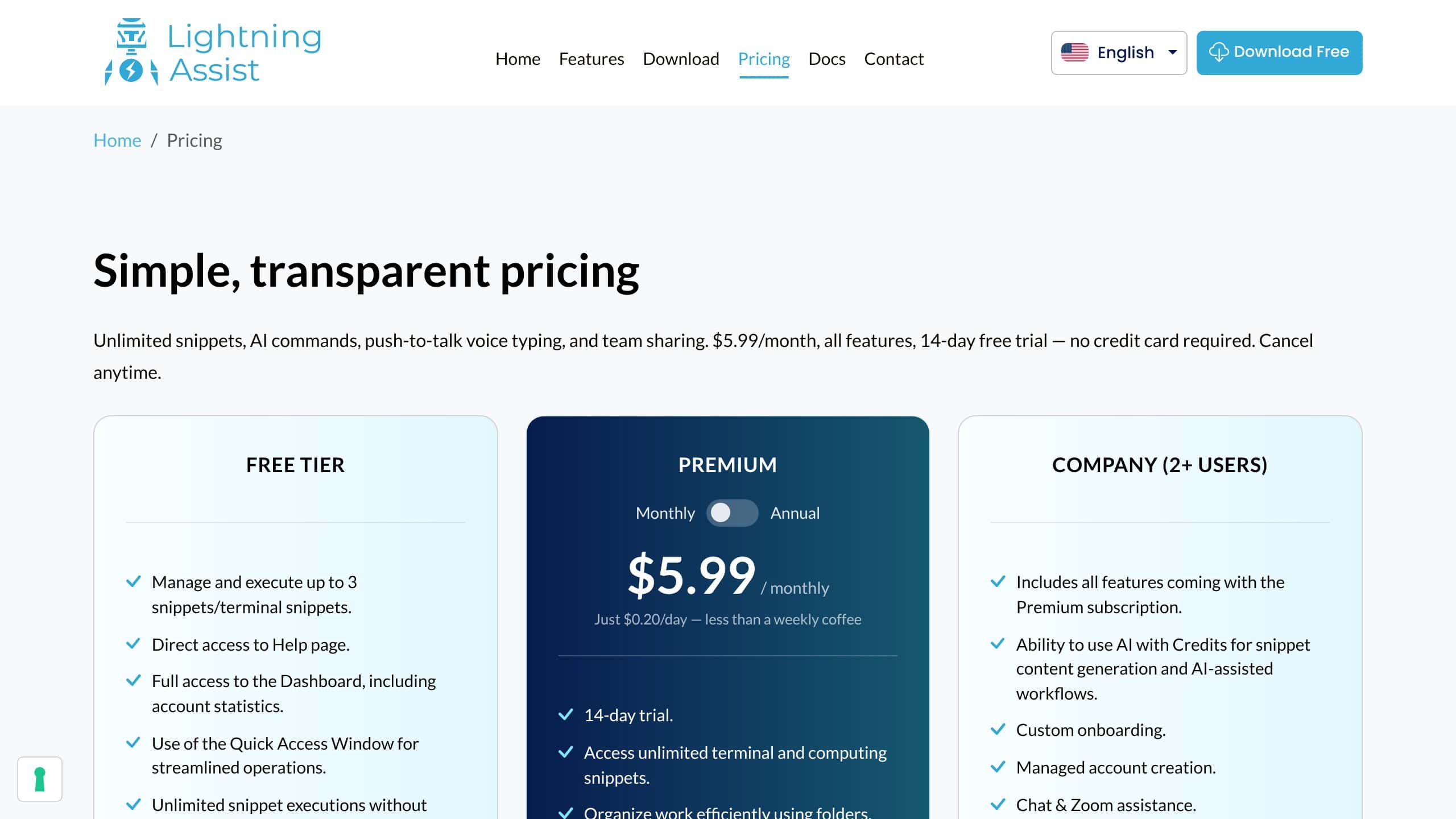
Lightning Assist uses a straightforward pricing model:
| Element | Details |
|---|---|
| Monthly subscription | $5.99/month |
| Free trial | 14 days, all features unlocked |
| Credit card for trial | Not required |
| What’s included | Unlimited snippets, AI commands, push-to-talk voice typing, team sharing |
| AI credits | Purchased separately, do not expire, no daily/monthly caps |
The $5.99 per month price point is competitive. Here is how it stacks up:
| Tool | Price | AI Features | Voice | Cross-Platform |
|---|---|---|---|---|
| Lightning Assist | $5.99/mo | Yes (credit-based) | Push-to-talk | Win/Mac/Linux |
| TextExpander | $3.33/mo (individual) | No native AI | No | Win/Mac/Chrome |
| aText | $4.99/year | No | No | Win/Mac |
| Espanso | Free | No | No | Win/Mac/Linux |
| Text Blaze | Free (limited) | Limited | No | Chrome only |
A few things stand out from this comparison:
- TextExpander is cheaper for basic text expansion ($3.33/month billed annually for the individual plan), but it does not include AI commands or voice typing. If you want those features, you would need separate tools on top of TextExpander’s cost.
- Espanso is free and open-source with cross-platform support, but it requires YAML configuration files. No AI, no voice, no visual interface. If you are comfortable with config files and do not need AI features, Espanso is a strong free alternative.
- aText is the cheapest at $4.99 per year, but it is limited to basic snippet expansion on Windows and Mac. No Linux, no AI, no voice.
- Lightning Assist is the only option that bundles AI rewriting, voice typing, and cross-platform snippet expansion into a single tool. The question is whether you need those extras or whether basic snippet expansion is enough.
If you want to compare this deal against other AI tool discounts, ZPlatform.ai tracks the current best offers across categories.
The 14-day free trial with no credit card is a strong move. It lets you test the full feature set against your actual workflow before committing. Most text expander trials are either too short (7 days) or too limited (capped snippets). Lightning Assist gives you the complete experience.
How Does Lightning Assist Compare to TextExpander, Espanso, and aText?
Lightning Assist vs TextExpander
TextExpander is the industry default. It has been around for over a decade, it has polish, it has strong team features, and it works across Windows, macOS, and Chrome (via extension).
Where TextExpander wins:
- More mature product with deeper team management features
- Larger user base and more integrations
- Established track record with enterprise customers
- Chrome extension covers web-only workflows
Where Lightning Assist wins:
- Built-in AI commands and text enhancement
- Push-to-talk voice dictation
- Native Linux support (TextExpander does not support Linux)
- Simpler pricing for individuals ($5.99/month vs TextExpander’s team-oriented pricing)
If you are a solo user or a small team that wants AI features built in, Lightning Assist is the better value. If you are an enterprise team that needs deep admin controls and has no interest in AI or voice features, TextExpander remains the safer choice.
Lightning Assist vs Espanso
Espanso is free, open-source, and runs on all three desktop platforms. It is the go-to recommendation for anyone who wants text expansion without paying a subscription.
Where Espanso wins:
- Free, permanently
- Open-source with community contributions
- Highly configurable via YAML
- No vendor lock-in
Where Lightning Assist wins:
- Visual interface (no YAML configuration required)
- AI commands and text enhancement
- Voice typing
- Team sharing
- Official support and regular updates
The choice here is clear: if you are technical, prefer open-source tools, and do not need AI or voice features, Espanso is the right answer. If you want a polished UI, built-in AI, and are willing to pay $5.99/month for convenience, Lightning Assist is the upgrade.
Lightning Assist vs aText
aText is the budget option at $4.99 per year (or $29.99 for a lifetime license). If you prefer one-time payments, check our list of tested AI lifetime deals for more options. aText covers basic text expansion on Windows and macOS.
Where aText wins:
- Cheapest option by a wide margin
- Lifetime purchase available
- Lightweight and simple
Where Lightning Assist wins:
- AI commands, voice typing, team sharing
- Linux support
- More active development and feature additions
- Modern UI
aText is perfect for someone who needs basic snippet expansion and nothing else. Lightning Assist makes sense for users who want the productivity multiplier of AI commands on top of standard text expansion.
Lightning Assist Review: What Are the Downsides?
No tool is perfect. Every honest review needs to cover the rough edges. Here are the limitations I found:
1. AI Credits Are a Separate Cost
The $5.99/month subscription does not include unlimited AI usage. AI features run on purchased credits. This is not unusual in the AI tool space, but it does mean you cannot predict your total monthly cost until you understand your AI usage patterns. If you plan to use AI commands 50 or more times per day, the credit costs could easily exceed the base subscription.
2. Learning Curve for Advanced Features
The basic snippet functionality is straightforward. But setting up AI commands with custom prompts, configuring voice typing models, and organizing large snippet libraries takes time. The Trustpilot review from user Nicushor confirmed this: “It took me a bit to get used to everything at first.” That said, he followed up with “after that, it was reliable and easy to use.”
3. Limited Brand Recognition
The tool is newer compared to TextExpander (which has been around since 2006). That means fewer community resources, fewer third-party guides, and a smaller user base for troubleshooting. The 4,000+ user base is growing but still small compared to established players.
4. No Browser-Only Mode
Unlike Text Blaze or Magical (which run as Chrome extensions), the app requires a desktop application install. If you work exclusively in a browser, including on Chromebooks, this tool will not work for you.
5. AI Output Quality Is Mid-Tier
The AI rewriting and enhancement features work well for grammar fixes, tone adjustments, and simple summaries. For complex rewrites or technical content, the output is average. Do not expect GPT-4 level quality from the built-in AI commands. They are convenient, not exceptional.
Who Should Buy Lightning Assist?
Buy if:
- You type repetitive text across multiple desktop apps every day
- You want AI rewriting commands built into your text expander instead of switching between tools
- You work on Linux and need a modern text expander (most competitors do not support Linux)
- You work in a team that needs shared snippet libraries
- You use the terminal regularly and want text expansion that works in PowerShell, Bash, or CMD
- You want push-to-talk voice typing without installing a separate dictation tool
Skip if:
- You only need basic text expansion. Espanso is free and handles the basics well.
- You work exclusively in a browser. Text Blaze or Magical are better browser-only options.
- You are on an extremely tight budget. aText at $4.99/year is cheaper for basic snippets.
- You need enterprise-grade team management. TextExpander has deeper admin controls.
- You need a free AI tool with no subscription commitment. Lightning Assist’s free trial is only 14 days.
The ideal Lightning Assist user is a professional who types repetitively across multiple desktop apps, wants AI-assisted text improvement built into their workflow, and is willing to pay $5.99/month plus AI credits for the convenience of having everything in one tool.
Think about it this way. Elena runs a three-person support team at a B2B SaaS startup. Each agent handles 60 or more tickets per day, mostly through Zendesk and Slack.
Before Lightning Assist, each agent had their own personal text files with saved replies. Consistency was poor. New agents took two weeks to build their own library. Nobody used the “suggested replies” feature in Zendesk because the canned responses were too generic.
After switching to Lightning Assist with shared snippets, Elena’s team cut average reply time by 35%. The AI enhance feature cleaned up rough drafts before sending. Onboarding for their newest hire took three days instead of two weeks. The $5.99 per seat cost was a fraction of what inconsistent replies were costing them in customer churn.
That is the use case where Lightning Assist makes the most sense.
Final Verdict
Here is where this Lightning Assist review lands. The tool is a well-built text expander app that combines three features, text expansion, AI commands, and voice typing, into a single native desktop app. It does all three competently. The text expansion is fast and reliable. The AI commands save time on routine text improvement. The voice typing is a nice bonus for quick dictation.
The pricing is fair. At $5.99 per month with a no-credit-card 14-day trial, the barrier to entry is low enough that testing it against your actual workflow is the smart move before committing.
The main caution is the AI credit model. If you are someone who will rely heavily on the AI features, calculate your likely credit usage before assuming the total cost is just $5.99. For casual AI users, the credit costs are minimal. For power users, they could double or triple the effective monthly price.
Compared to the competition, this AI text expander occupies a clear niche: it is the only text expander AI tool that bundles rewriting and voice typing natively. If those features matter to your workflow, this is currently the best option. If you only need basic snippet expansion, free tools like Espanso or cheap tools like aText will do the job.
My recommendation: start the 14-day free trial on Lightning Assist’s website, set up 20-30 snippets for your most-typed content, test at least 3-4 AI commands, and see if the time savings justify the subscription.
For more tools like this, browse all AI deals on ZPlatform.ai or subscribe for weekly AI deal alerts to get notified when the best productivity deals go live.
Tools do not save time by themselves. They only help you do the right work, faster. The question is always whether a tool fits your actual workflow, not whether its feature list looks impressive on paper. — Alston Antony
FAQ
Is Lightning Assist Free?
Lightning Assist offers a 14-day free trial with all features unlocked and no credit card required. After the trial, the subscription costs $5.99 per month. There is no permanent free tier. If you need a completely free text expander, Espanso is the best open-source option for Windows, macOS, and Linux.
Does Lightning Assist Work on Linux?
Yes. One of the standout findings in this Lightning Assist review is full native support for Windows, macOS, and Linux. This is a notable advantage over TextExpander and aText, which do not support Linux. For Linux users who want a text expander with a visual interface and AI features, Lightning Assist is currently one of the few paid options available.
How Much Do AI Credits Cost in Lightning Assist?
AI credits are purchased separately from the monthly subscription. Credits are priced in USD, do not expire, and have no daily or monthly usage caps. The exact credit pricing varies, and the total cost depends on how frequently you use AI commands, AI chat, and voice typing. Light users can expect to spend $3-8 per month on credits. Heavy AI users will spend more.
Can I Use Lightning Assist for Team Collaboration?
Yes. Lightning Assist supports shared snippet libraries that team members can access and use. This is useful for support teams, sales teams, and development teams that need consistent templates and responses. The team sharing feature is included in the standard $5.99 per month plan.
Is Lightning Assist Better Than TextExpander?
It depends on your needs. If you are looking for the best text expander 2026 with AI features, Lightning Assist is the stronger pick for built-in AI commands, push-to-talk voice typing, and Linux support. TextExpander is better if you need deep team management controls, a larger integration ecosystem, and a Chrome extension for browser-only workflows. For individual users and small teams that value AI features, Lightning Assist is the better value.
Does Lightning Assist Support Terminal Commands?
Yes. Lightning Assist includes terminal-specific snippet support for PowerShell, Bash, and CMD. You can create snippets that expand correctly inside terminal environments without the formatting issues that plague other text expanders in command-line interfaces.
Is My Data Secure With Lightning Assist?
The tool is GDPR compliant, and the company emphasizes data security in its positioning. The push-to-talk voice feature only listens while you hold the hotkey, so there is no always-on microphone concern. For users handling sensitive client data, the GDPR compliance and push-to-talk design provide reasonable privacy assurances.
What Happens When I Run Out of AI Credits?
This is one of the most common questions in any Lightning Assist review. When your AI credit balance reaches zero, AI features (AI commands, AI chat, AI enhance, and voice typing transcription) pause until you purchase more credits. The core text expansion and snippet features continue to work normally without credits. Your existing snippets, hotkeys, and quick access window are unaffected.
Disclosure: Deal Notification. This tool was surfaced through community deal tracking. It has not been purchased or tested with a paid account by the reviewer. The analysis is based on the free trial experience, public documentation, and verified user feedback. If you found this review useful, subscribe to ZPlatform.ai for weekly AI deal alerts.
