

Video editing software splits into two camps these days: heavyweight desktop suites built for total control, and lighter, faster tools built for creators who just need to ship content. In 2026, a third category emerged: AI-assisted editors that hand off the repetitive parts of editing entirely.
Here are five worth knowing about, including one that’s redefining what “editing” even means.
Invideo Editor: best for AI-assisted editing (and it’s free)
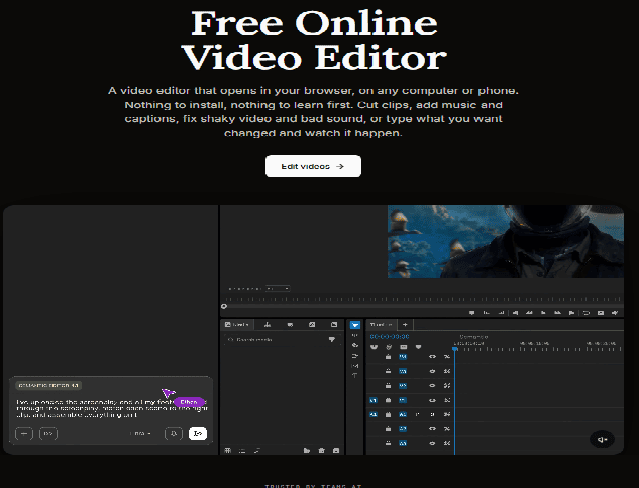
The web based video editor from invideo runs entirely in your browser, on any computer or phone. Nothing to install, nothing to learn first. You can trim clips, add music and captions, fix shaky footage and bad sound, or simply type what you want changed and watch it happen.
What sets the invideo editor apart from other browser-based tools is its AI editing agents. Upload messy, unorganized footage (repeated takes, false starts, dead air, filler words) and describe the cut you want, by topic, story, shooting order, or transcript. The agents review the material, pick the usable takes, cut the repetition, and assemble a full “base cut” directly on an editable timeline. This isn’t a highlights reel; it’s a complete first pass that runs start to finish, ready for you to keep shaping. It works across single-camera footage with or without a script, multicam interviews, music-led edits, and even generated media.
Underneath the AI layer, the invideo editor is a genuine timeline editor, not a template tool. Every clip, caption, and sound sits on a timeline you can rearrange however you want:
- Frame-accurate trims, with keyframes, speed ramps, and multicam support
- Transcript-based editing: delete a sentence from the transcript, and that part of the video is gone, umms and pauses included
- Color grading with wheels, curves, LUTs, and shot-matching to keep scenes consistent
- Multitrack audio mixing, with voice isolation, de-noise, auto-leveling, and music that automatically ducks under dialogue
- Background swaps without needing a green screen
- Multiplayer editing: the timeline works like a shared document, so a team can edit the same project live, with comments pinned to the exact moment they’re about
Once you’re done, export in up to 4K, generate versions sized for every platform in a single pass, or export an editable project straight into Premiere Pro, Final Cut Pro, or DaVinci Resolve if you want to keep working elsewhere.
Best for: creators and editors who want a professional timeline without the professional grunt work and don’t want to pay for it. The core invideo editor, transcript-based editing, and project sharing are free; paid plans add more AI credits, storage, and watermark-free exports.
Adobe Premiere Pro: best for professional, industry-standard workflows
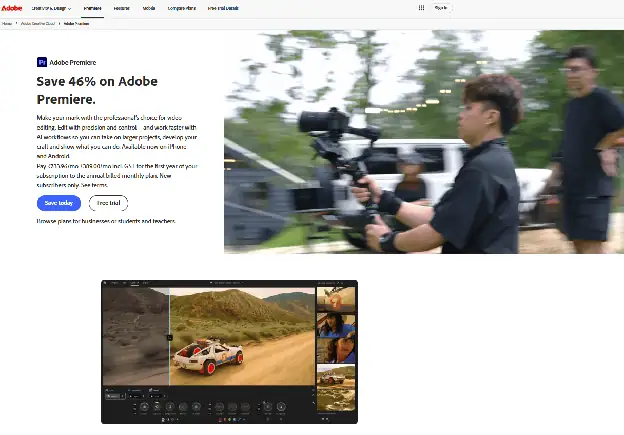
Premiere Pro remains the default choice in professional studios and among top YouTubers, largely because of how deeply it integrates with the rest of Adobe’s ecosystem: After Effects for motion graphics, Photoshop for stills, Audition for audio. It offers granular control over nearly every part of the editing process and exports optimized presets for virtually any platform.
The tradeoff is complexity and cost. Premiere Pro runs on a subscription, and its interface assumes a level of familiarity that can be intimidating for someone editing their first video. It rewards editors who already know what they’re looking for.
Best for: professional editors and teams already inside the Adobe ecosystem who need maximum control and don’t mind a steeper learning curve or recurring subscription cost.
DaVinci Resolve: best free professional-grade editor
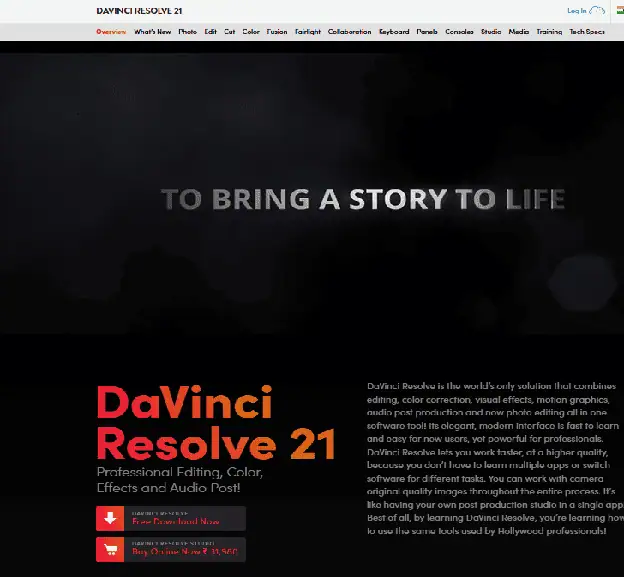
Resolve is the industry standard for color grading, and its free tier is remarkably close to feature-complete compared to its paid Studio version. It combines a full non-linear editor, a professional color suite, audio post-production (Fairlight), and visual effects (Fusion) in a single desktop application.
The catch is that Resolve is a heavier, more technical tool. It’s built for editors who want to go deep on color and finishing, not for someone who just wants to cut a quick clip and post it. It also runs as installed desktop software, so there’s no browser-based version and no built-in AI agent to handle rough assembly for you.
Best for: editors who want desktop-grade color and audio tools without a subscription, and who don’t mind investing time in learning a denser interface.
Final Cut Pro: best for Mac-based creators
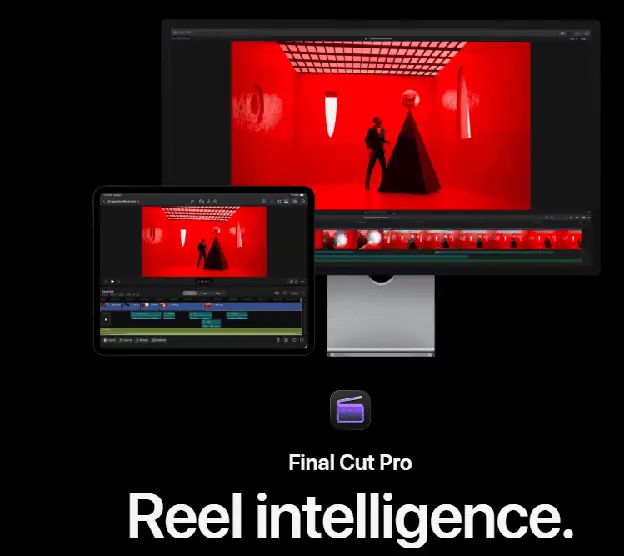
Final Cut Pro is built specifically for macOS and known for its speed, particularly on large 4K and 8K projects, thanks to tight integration with Apple Silicon hardware. It uses a one-time purchase rather than a subscription, which appeals to editors who’d rather pay once than commit to a recurring monthly cost.
Its biggest limitation is platform lock-in: it’s Mac-only, so it’s not an option for Windows users, and project files don’t move as easily into cross-platform pipelines as some competitors.
Best for: Mac users who want a fast, native editing experience and prefer paying once over an ongoing subscription.
CapCut: best for short-form, mobile-first content
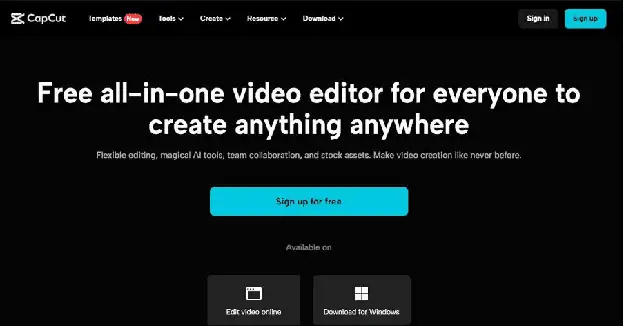
CapCut is built around vertical, social-first editing (TikTok, Reels, YouTube Shorts) with trend-driven templates, automatic captions, and beat-synced effects that make fast turnaround content easy on both mobile and desktop. It’s particularly popular with creators who need to post frequently and don’t need a deep timeline to do it.
Where it falls short is depth: CapCut is optimized for short, template-driven edits rather than long-form projects with complex multitrack audio or color work.
Best for: creators whose primary output is short-form social video and who prioritize speed and trend-chasing over deep timeline control.
The bottom line
If you want professional-level editing with zero cost and zero installs, and you’d rather direct an AI agent through the repetitive parts of editing than grind through them by hand, the invideo editor is the one to start with. If you’re already committed to a desktop pipeline, Premiere Pro, Resolve, or Final Cut Pro cover the traditional end of the spectrum; CapCut covers short-form.
FAQs
Is the invideo editor really free?
Yes. The free plan includes the full editor, transcript-based editing, and the ability to share a project with others. Paid plans add more AI credits, storage, and watermark-free exports.
Do I need to install anything to use it?
No. The invideo editor runs in your browser, even on an ordinary laptop, because the processing happens in invideo’s cloud rather than on your device. It’s also available as an app on Mac, Windows, Linux, iPhone, and Android if you prefer that route.
What makes invideo different from other browser-based editors?
Its AI editing agents. Instead of just offering faster manual tools, they can review raw, unorganized footage and assemble a complete base cut from your direction, picking clean takes, cutting repetition, and laying it onto the timeline while leaving you full control to keep refining it.
Which of these editors is best for a total beginner?
The invideo editor and CapCut are both strong starting points. Invideo lets you cut a video by deleting lines from its transcript or telling the AI what to change, and because it’s a real timeline editor underneath, you won’t outgrow it as your skills improve.
Which editor is best for professional color grading?
DaVinci Resolve, for its dedicated Fusion and color-grading tools, though the invideo editor also includes color wheels, curves, and LUTs with shot-matching built into its standard timeline.
Can I use more than one of these together?
Yes, and many editors do. A common workflow is assembling a rough cut quickly in the invideo editor, then exporting the project into Premiere Pro, Final Cut Pro, or DaVinci Resolve for advanced finishing work. Invideo supports exporting an editable project to all three.
Related Posts

AI adoption statistics, sourced: 78% of companies say they use AI and only 21% have redesigned a workflow. Here is the h...

A free, cited AI glossary covering 264 machine learning and generative AI terms, with plain-English definitions and cros...

Real examples of artificial intelligence in digital marketing across content, SEO, ads, email and analytics, with what e...

AI marketing on Reddit: I pulled 239 threads across 7 subreddits. Marketers use AI daily and mostly dislike the products...
The AI prompt manager I built for Chrome and Firefox: save, tag, version and export your prompts locally. Free, no accou...

An AI shopping assistant finds products and compares prices for you. Which to use across ChatGPT, Gemini, Rufus and Perp...