

AI work may happen in the cloud, but the files that keep a project moving often live on a Windows PC, an external drive, a USB stick, or an SD card. Generated images, edited videos, prompt libraries, datasets, client exports, and presentation drafts can disappear after an accidental deletion, a failed transfer, or a formatted device. When that happens, the first response matters more than another frantic search.
The safest approach is simple: identify where the missing file last existed, stop writing new data to that storage device, check ordinary copies, and only then scan the stable device with a recovery tool. This guide explains that workflow for AI creators, marketers, founders, and small SaaS teams. It also shows whereDrecov fits when a file existed locally but no usable copy remains.
Know what went missing
Before running any software, define the missing item precisely. An AI project can contain several related files: the original camera footage, a local dataset, prompts in a text document, generated assets downloaded from a web app, an editing project, and final exports. Recovering the wrong layer may waste time even if the scan succeeds.
Write down the filename or extension if you remember it, the last folder or device, the approximate deletion time, and the program that created or downloaded it. Also check whether the missing item was ever stored locally. A browser-based AI service may keep a project only in its own account. Local recovery software cannot retrieve content that never reached the computer or storage device.
Stop using the source
Deleted data does not always vanish immediately. Windows may mark its storage space as available, while the underlying content remains until another file overwrites it. Every download, cache update, render, installation, or export can reduce the chance of useful recovery.
Stop using the affected drive as soon as you notice the loss. Do not install recovery software on that same drive, and do not save new AI outputs there. If the loss happened on an SD card or USB drive, eject it safely and leave it disconnected until you are ready to scan. For an internal system drive, limit activity and prepare another healthy drive for recovered files.
Check existing copies first
Start with the places that can restore a file without scanning storage. Look in the Recycle Bin and in the AI platform’s project history, downloads area, or asset library. Then check OneDrive, Google Drive, Dropbox, version history, email attachments, shared workspaces, and the autosave or backup folder used by your editor.
Creative teams should also inspect proxy folders, render caches, exported previews, and collaborator devices. A lower-resolution preview may not replace the original, but it can preserve the concept while the team investigates. If the file appears in cloud storage, download it to a healthy location and verify that it opens before changing anything on the source device.
Where Drecov fits
Drecov is a Windows recovery tool for files stored on PCs, hard drives, SSDs, USB drives, SD cards, memory cards, and other connected storage. It can search for photos, videos, documents, audio, archives, emails, and many other file types, which matches the mixed assets found in a typical AI production folder.
Drecov scans in read-only mode, so the scan does not intentionally modify the source storage. It offers Quick Scan for recently lost files and Deep Scan for a broader search. Users can filter results, preview supported files, and pause or resume a long scan. Those features help when a large creator drive contains thousands of unrelated assets. However, no recovery tool can guarantee a result, repair severe physical damage, or restore cloud-only content.
Step 1: scan in the right order
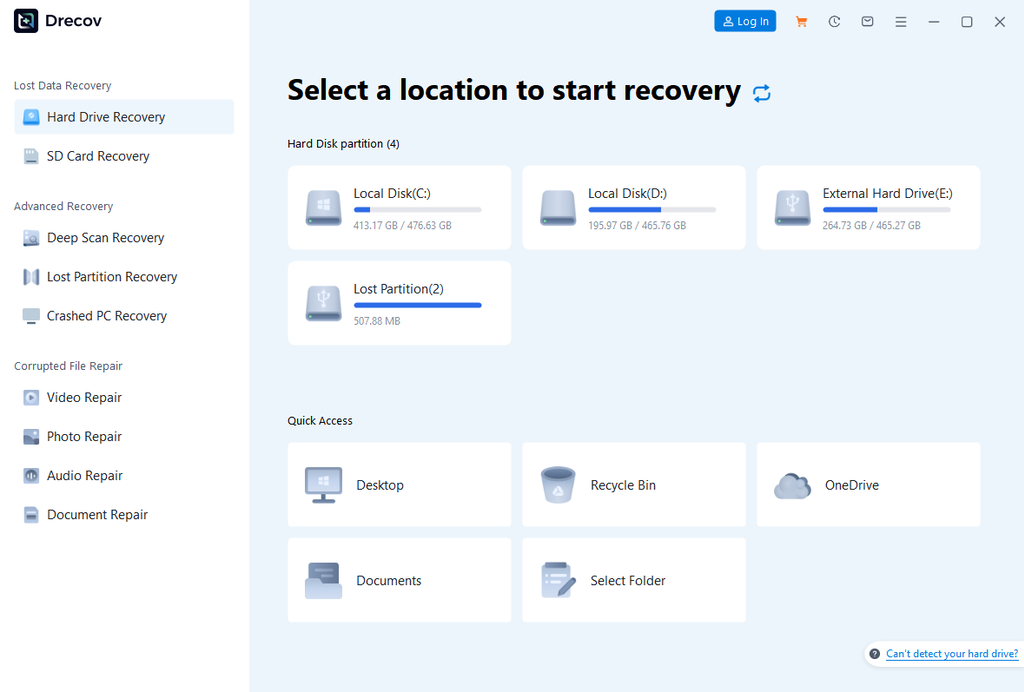
Launch Drecov and select the original location of the missing files. Choose the specific partition, external drive, USB device, or memory card instead of scanning every available disk. A focused scan produces a cleaner result and makes the review easier.
Run Quick Scan first when the loss was recent. Search by filename, extension, date, or file type as results appear. If the expected files do not show up, continue with Deep Scan. A deep scan takes longer because it examines storage more thoroughly, so use the pause and resume controls rather than interrupting the device or forcing the program to close.
Step 2: preview before recovery
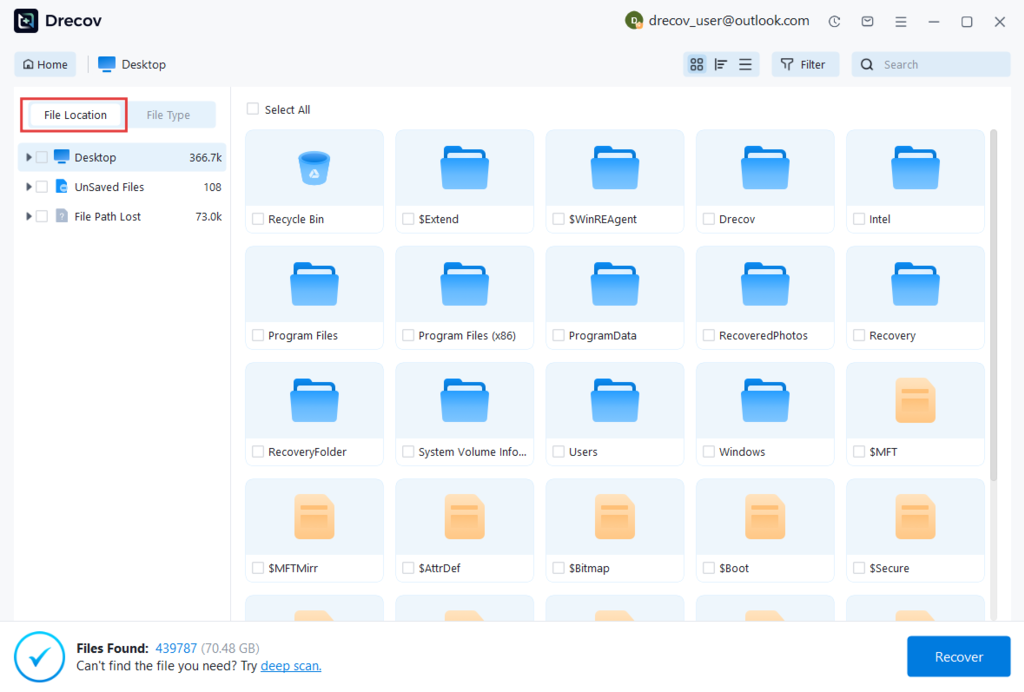
A long results list does not mean every item is usable. Deleted records may have lost their original names or folders, and overwritten files may appear incomplete. Use Drecov’s filters and preview function to narrow the list before restoring anything.
For AI image work, preview thumbnails and confirm dimensions when possible. For documents, open the preview and look for intact pages rather than relying on the filename. Video recovery needs extra care because a clip may appear in the results but still contain damaged frames or missing audio. Select the most promising versions first, then recover them to the healthy destination drive.
Step 3: verify recovered assets
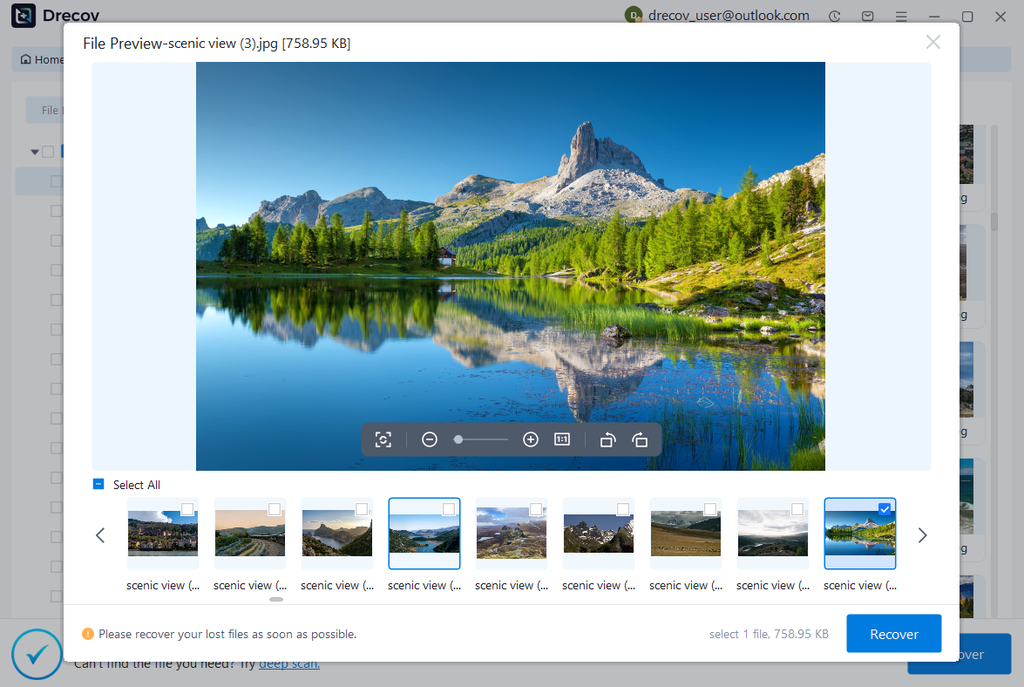
Open recovered files from the destination, not from inside the scan window. Test documents in their normal application, play videos from beginning to end, inspect image resolution, and confirm that archives extract correctly. For datasets, check row counts, encoding, headers, and a sample of records before using them again.
AI teams should also verify relationships between files. An editing project may open but still point to missing media. A prompt library may be intact while linked reference images remain absent. Preserve the recovered folder exactly as created until you finish checking it. Then copy verified assets into a new project workspace and document which versions the team can trust.
Handle USB and SD card loss
Removable media creates extra risk because people often reuse it quickly. After a camera shoot or field recording, an SD card may return to service before anyone notices that an AI enhancement workflow lacks an original clip. A USB drive may also move between team members and collect new files that overwrite deleted data.
For USB drive recovery, connect the device directly to a stable port and avoid copying anything onto it. For SD cards, use a reliable reader and engage the card’s lock switch when available. If Windows detects the device consistently, scan it once and save results elsewhere. If the connection drops or the capacity appears incorrect, stop and consider professional help.
Separate logical and physical failure
DIY software suits logical data loss on a device that remains stable and readable. Common examples include accidental deletion, an emptied Recycle Bin, quick formatting, a missing partition, or a drive that Windows shows as RAW. In these cases, the storage hardware may still respond normally even though the file system no longer points to the content.
Physical symptoms require a different decision. Stop if a hard drive clicks, disconnects repeatedly, becomes unusually hot, or prevents Windows from responding. The same caution applies to cracked memory cards, liquid damage, burned electronics, and devices that no computer can detect. Repeated scanning can stress failing hardware. A professional recovery lab is the safer route when the device behaves unpredictably.
Protect the next project
Recovery is a last resort, not a storage strategy. Keep at least three copies of important project data, on two types of media, with one copy stored off-site or in a separate cloud account. Version prompt libraries, datasets, project files, and final exports rather than syncing only the latest state.
Create a simple handoff rule for removable media: copy, verify, back up, and only then erase the card or drive. Give project folders consistent names and include dates or version numbers. Test restores periodically, because a backup that nobody has opened may fail when the team needs it most. Also keep cloud exports in a local archive; access to a SaaS workspace can change even when the files remain important.
Final takeaway
When AI project files disappear, speed helps only if the response avoids new writes. Confirm where the file lived, check cloud and application copies, stop using the source device, and distinguish logical loss from physical failure. For a stable Windows-readable drive, Drecovprovides a practical scan, filter, preview, and recovery workflow across common project file types and storage devices.
The key discipline comes after the scan: restore to another drive, verify every important asset, and rebuild the project only from checked copies. That approach protects the remaining evidence and gives creators and SaaS teams the best chance to resume work without turning one missing file into a larger loss.
Related Posts

Agentic AI pentesting tools replay the original exploit after a patch ships, then try mutated payloads. Eight platforms ...

AI adoption statistics, sourced: 78% of companies say they use AI and only 21% have redesigned a workflow. Here is the h...

A free, cited AI glossary covering 264 machine learning and generative AI terms, with plain-English definitions and cros...

Real examples of artificial intelligence in digital marketing across content, SEO, ads, email and analytics, with what e...

AI marketing on Reddit: I pulled 239 threads across 7 subreddits. Marketers use AI daily and mostly dislike the products...
The AI prompt manager I built for Chrome and Firefox: save, tag, version and export your prompts locally. Free, no accou...