

Verdict: Buy
What is cloudHQ?
cloudHQ is a US company, cloudHQ LLC, that makes more than 90 freemium Chrome extensions adding email tracking, bulk PDF export, shared labels, templates and mail merge to Gmail, plus a separate cloud sync product. Every headline tool has a free version, but only 3 of the 98 offers in cloudHQ’s own pricing data cost nothing, so the useful limits sit behind $4.99 to $19.80 per app. cloudHQ is rated 3.9 out of 5 across 27 G2 reviews. Verdict: install the two or three free tiers that cover your job, price each upgrade before assuming the suite is free, and skip the $149-a-year sync plan unless cross-cloud migration is the job.
cloudHQ started as a cloud-to-cloud sync and backup service and expanded into a large library of Gmail add-ons, the kind ranked in my AI Chrome extensions leaderboard. That history explains the split personality across its site. The original product syncs, backs up and migrates files continuously between Google Drive, Dropbox, Box, OneDrive, Egnyte and Amazon S3 from cloudHQ’s own servers. The Gmail tool collection is the newer and far more popular side, and it is what most people mean when they search “cloudHQ” today.
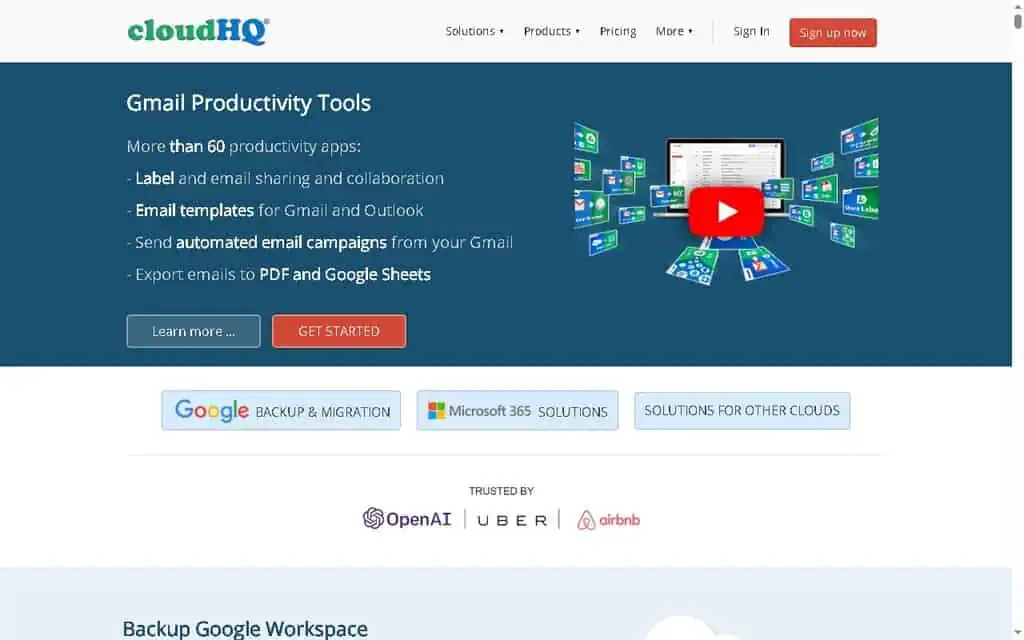
The homepage lists OpenAI, Uber and Airbnb as users, and cloudHQ extensions have millions of installs across the Chrome Web Store and Google Workspace Marketplace. Volume like that does not guarantee quality, but it does tell you the tools have survived years of Gmail interface changes, which is more than a lot of abandoned Gmail add-ons can claim.
One extension per feature: how cloudHQ runs inside Gmail
Installing a cloudHQ tool follows the same pattern every time, and once you have done it once, the rest take 30 seconds each. You find the tool on the cloudHQ apps page or the Chrome Web Store, click add to Chrome, and the extension injects a new button or panel into your Gmail interface. The first time you use it, Google shows an OAuth consent screen asking you to authorize cloudHQ to access the relevant part of your account.
cloudHQ connects through Google’s official authorization protocol, receives a scoped token, and never sees your password. You can revoke access at any time from your Google account permissions page.
The part the marketing does not emphasize: each tool is a separate extension. Email tracking, PDF export and label sharing means three installs, three OAuth prompts and three new buttons in your Gmail toolbar. cloudHQ does offer bundled installs and a unified account, but you are still managing a collection of parts rather than one app.
Once a tool is in, its buttons sit inside the compose window and toolbar, so there is no separate dashboard for daily use and the learning curve per tool is near zero. The complexity comes from volume, not difficulty.
How I use cloudHQ in Gmail: my real workflow (step by step)
When a single company offers more than 90 Gmail extensions, my first reaction is doubt. Nobody builds 90 good tools; somebody builds 6 good tools and 84 thin wrappers to dominate the Chrome Web Store. So I installed cloudHQ on my own Google Workspace account and ran three of its tools through a month of daily email work, the same hands-on approach behind my AI tool reviews.
My goal: track when clients open my proposals so I can follow up at the right moment, and export signed agreements to PDF for my records, without paying for three separate subscriptions.
My environment: Google Workspace (my business Gmail), Chrome on Windows 11, with the same setup mirrored on macOS. Everything below happens in the Gmail web app.
Step 1: Installing the cloudHQ extensions and the OAuth prompt
I installed exactly three: the Email Tracker, Save Emails as PDF, and Label Sharing for Gmail. For each one I opened the app page, clicked Add to Chrome, then Add extension in the browser confirmation popup.
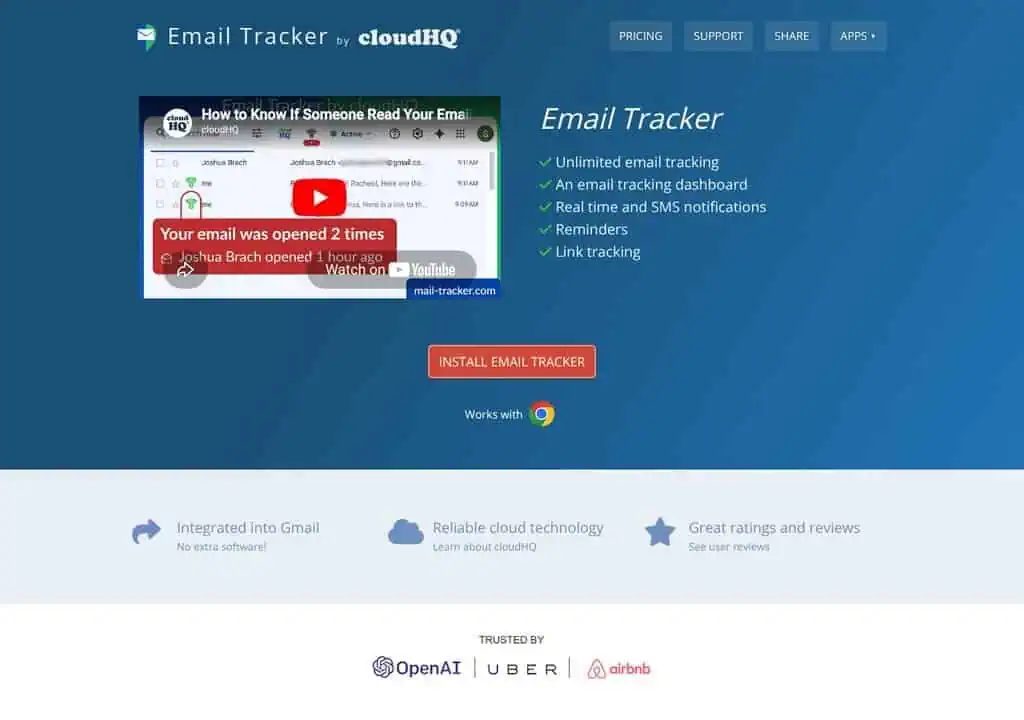
The first time I opened Gmail after installing, each tool showed a Google OAuth consent screen. I read the scopes before accepting: the Email Tracker asked to “read, compose, send, and permanently delete” email, which sounds alarming but is the standard scope a tracker needs to inject its pixel and read open events.
I accepted it because cloudHQ authenticates through Google directly and I can revoke access in one click from my Google permissions page. If a scope ever looks broader than the job, that is your cue to stop and read carefully. Total setup time for all three was about four minutes.
Step 2: Email Tracker, knowing the exact moment a client opens a proposal
Here is the exact sequence I run on every important send:
- Click Compose and write the email as normal.
- At the bottom of the compose window, I flip the tracking toggle on (it turns green and shows a small checkmark).
- Hit Send.
- When the client opens it, I get a desktop notification within seconds, and for proposals I also enabled the optional SMS alert.
- I click Tracking Results in Gmail to see the full open history, every open, the timestamps, and any link clicks, not just the first open.
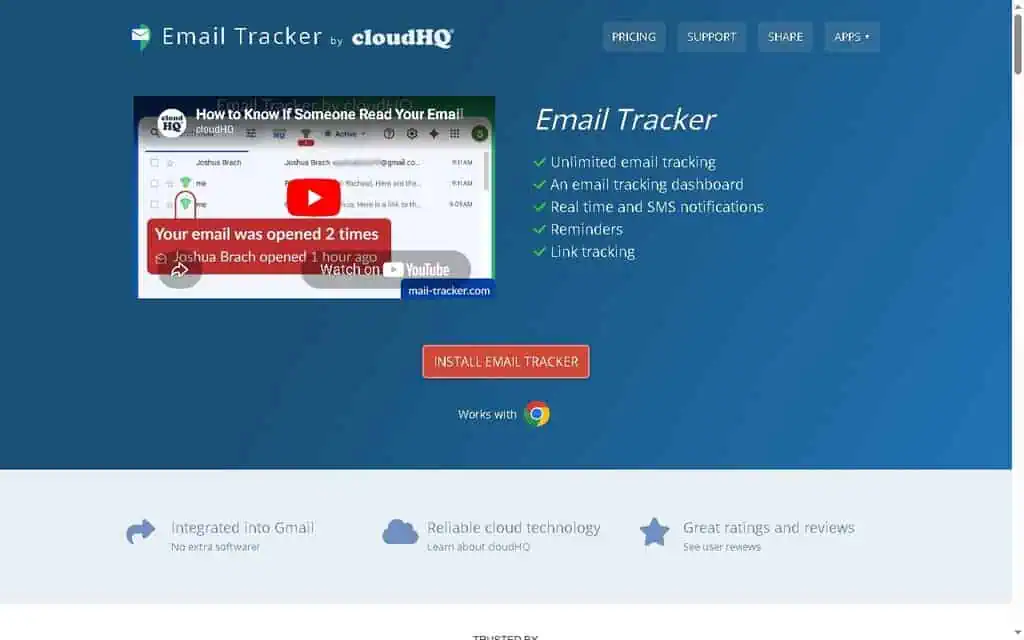
The outcome that mattered: I used to send a proposal and then follow up blindly three days later. Now I see the open notification, often within the same hour, and I follow up that same afternoon. Across my last dozen proposals, my average time-to-reply dropped from roughly three days to under one day.
Step 3: Save Emails as PDF, archiving signed agreements in one click
- I select my “Signed Agreements” label (or check individual messages).
- Click the Save to PDF button cloudHQ added to the Gmail toolbar.
- In the options panel I chose separate PDFs (one per agreement) rather than one combined file, and toggled include attachments on so signed contracts and their attachments stay together.
- The files saved straight to my chosen Google Drive folder.
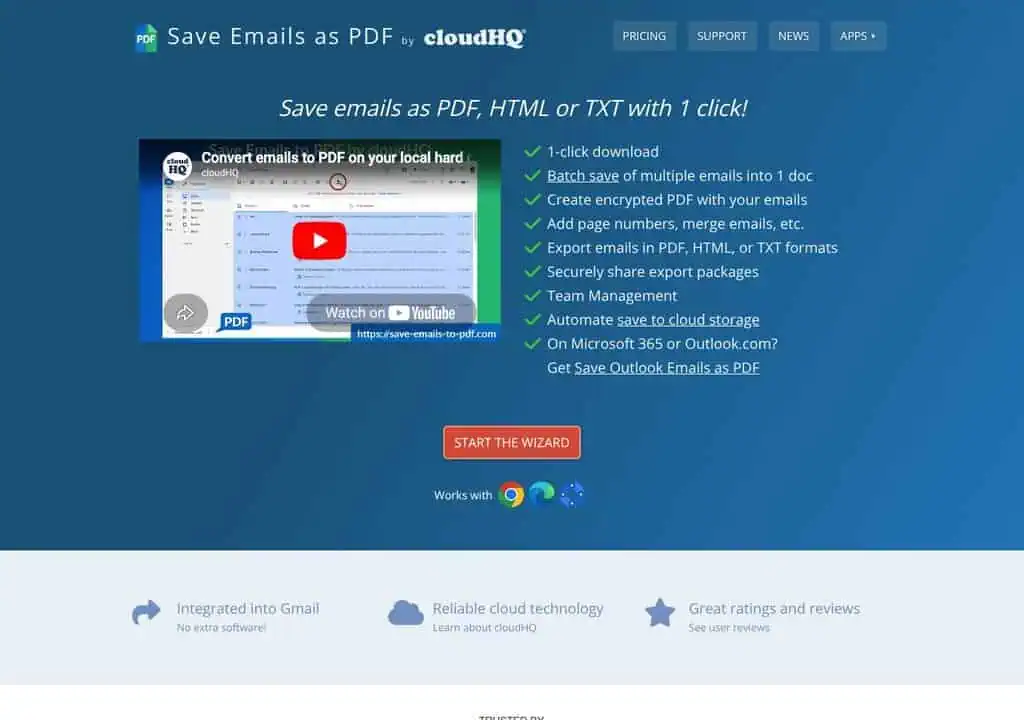
When I exported about 40 emails at once on the free tier, cloudHQ did not freeze: it ran the job in the background and emailed me a download link in roughly two minutes. For my normal weekly use of five to ten emails, it is instant. The outcome: archiving a month of contracts went from about 20 minutes of printing files one by one to under two minutes of my actual attention.
Step 4: Label Sharing, a shared inbox for my team without a help desk
- I created a Gmail label called “Client Support.”
- Opened Label Sharing, clicked Share, and entered my teammate’s email address.
- They got an invite and accepted it from their own Gmail.
- Now any email I drop into that label appears in their Gmail in real time, and our private notes and comments show in a side panel attached to the thread.
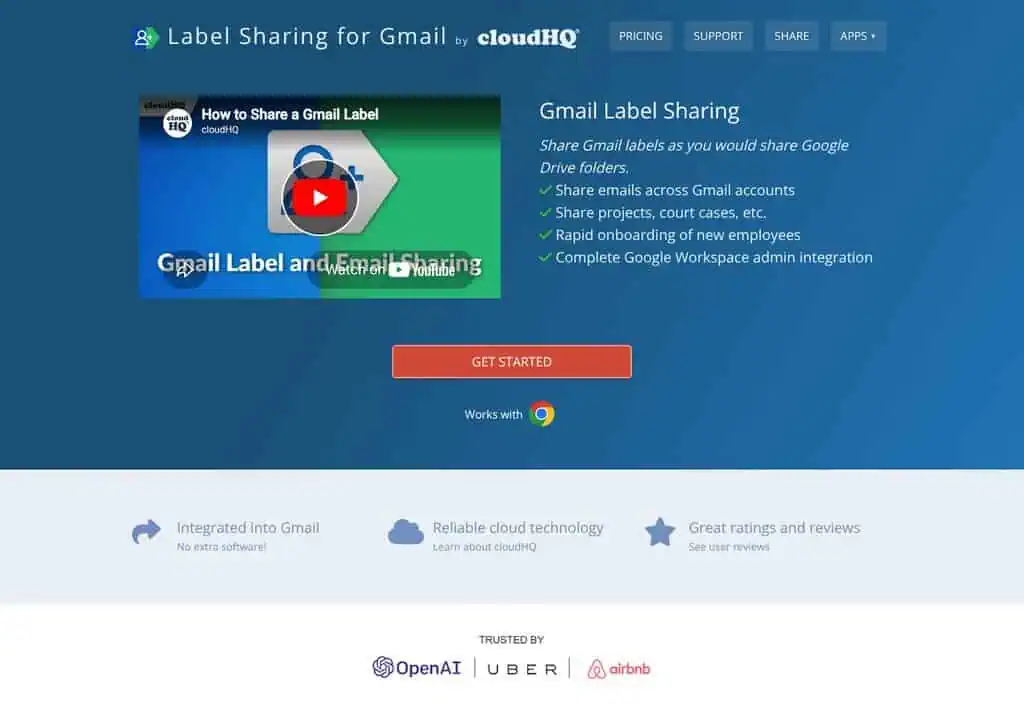
It killed the forwarding mess instantly: we both see every message and its status without cc-ing each other. It does not hard-lock a thread, so we added a rule that whoever replies first drops a quick “mine” note in the comment panel. The outcome: our internal “who is handling this?” pings dropped to almost zero.
My measurable results after one month
- Proposal follow-up time: roughly 3 days down to under 1 day, because I follow up on the open, not on a guess.
- Contract archiving: about 20 minutes a month down to under 2 minutes.
- Tools replaced: a paid email tracker, a paid PDF-export add-on, and a shared-inbox subscription, swapped for three free cloudHQ tools.
- Cost change: from roughly $35 to $40 a month in overlapping subscriptions down to $0 for these three jobs.
Those are my numbers from my own workflow; yours will vary with how heavily you send, archive and collaborate. If you only copy one part of this, make it Step 2: the Email Tracker is the change that paid for itself fastest.
The cloudHQ Gmail tools worth installing
Not all 90 tools deserve equal attention. These are the ones worth a slot in your toolbar; the full catalog by category follows.
Email Tracker: real-time Gmail open tracking
The cloudHQ Email Tracker is the strongest reason to try the suite. You install it, compose an email, and a small tracking toggle appears. When the recipient opens your message, you get a desktop and optional SMS notification. The free version does this; lifting its limits is $6.90.
I tested it on a batch of outreach emails and the open notifications fired within seconds of me opening the messages in a separate test account. It tracks opens, link clicks and attachment views, and it timestamps everything so you can see the full open history rather than just the first open. The SMS alert is a useful touch when you are waiting on a contract.
Best for: Freelancers, salespeople, and founders who send important emails and want to know if they landed, without paying for a sales engagement platform.
Save Emails as PDF: bulk Gmail to PDF export
Save Emails as PDF converts a Gmail message or an entire label into a PDF, HTML, or text file with one click, including attachments. If you need to archive a client agreement, save a receipt, or hand a thread to your accountant, this is the tool.
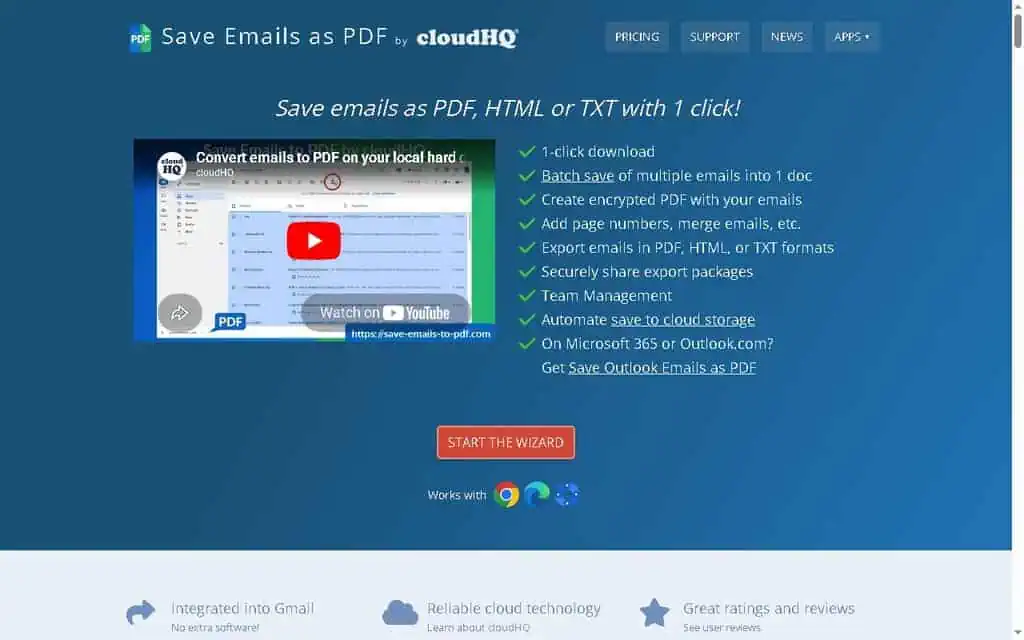
What sets it apart from Gmail’s built-in print-to-PDF is bulk export. You can select a whole label, say “Invoices 2026,” and export every message into individual PDFs or one combined file, with attachments either embedded or saved alongside. The formatting keeps inline images and basic styling intact rather than producing the broken layout you get from printing.
Best for: Anyone who needs an audit trail, accountants, lawyers, and businesses that archive email for compliance.
Label Sharing: shared inboxes without a help desk tool
Label Sharing for Gmail shares a Gmail label, and every email inside it, with teammates in real time, which turns a label into a lightweight shared inbox. Drop an email into the shared label and your colleague sees it instantly in their own Gmail.
This is the tool I did not expect to like and ended up respecting. For a two or three person team handling a shared address like support@ or sales@, it replaces a $20-per-seat shared-inbox tool with a Gmail label. Everyone works in their own Gmail, comments stay attached to threads, and you avoid the forwarding mess that usually passes for team email.
Best for: Small teams sharing a common address who want collaboration without a new app or monthly per-seat cost.
Email Templates and Gmail Snippets: stop retyping the same replies
cloudHQ Email Templates lets you build, save, and insert reusable email templates inside Gmail, while Gmail Snippets uses keyboard shortcuts to drop in commonly used phrases, much like the text expander in my Lightning Assist review. If you write near-identical project-kickoff emails several times a day at three or four minutes each, three templates (kickoff, revision request, invoice follow-up) cut that to a few seconds per send.
Templates support variables, formatting, and image embedding, and they sync across your devices. Gmail’s own native templates (Settings, Advanced, Templates) already cover basic needs for free, so cloudHQ only wins here if you need shared team templates, richer formatting, or the snippet shortcut workflow.
Best for: Customer support, sales reps, and anyone who answers the same questions repeatedly.
Meeting Scheduler, Schedule Email and Snooze: the timing tools
Meeting Scheduler for Gmail connects to your Google Calendar and lets recipients pick an open slot, working like a free Calendly built into Gmail. Schedule Email sends a drafted message at a future time, and Snooze Email pulls a message out of your inbox and returns it when you are ready.
Gmail already has native scheduling and snoozing, so those two cloudHQ versions only matter if you want more granular control. The Meeting Scheduler is the one that earns its place, because a free scheduling-link tool competes with paid Calendly and saves you a subscription.
Best for: Meeting Scheduler is a strong pick for anyone currently paying for a basic calendar-booking tool.
MailKing and Auto Follow Up: mail merge from Gmail, with Gmail’s limits
cloudHQ MailKing sends personalized bulk campaigns from Gmail with merge fields, open and click tracking and basic campaign reporting, while Auto Follow Up sends automated follow-ups when recipients do not reply. For a solopreneur running a small outreach campaign to warm contacts, it works without a separate email platform.
Be realistic about the ceiling. Sending bulk email through your own Gmail keeps Google’s sending limits (roughly 500 messages a day on free Gmail, 2,000 on Workspace) and puts your own domain reputation on the line. cloudHQ does not change those limits, and large-scale cold email belongs on a dedicated platform with proper domain warm-up. Clean your list first with a tool like the one in my Reoon Email Verifier review.
Best for: Light, personalized mail merges to existing contacts, not large-scale cold email.
ChatGPT for Gmail: cloudHQ’s AI layer
ChatGPT for Gmail by cloudHQ adds an AI writing assistant inside your inbox that drafts, rewrites, and summarizes emails using ChatGPT, without leaving Gmail. There is also a ChatGPT Sidebar and ChatGPT for Google for broader use. If you already pay for ChatGPT Plus or use Claude, this adds convenience rather than capability, since you could paste the same content into either tool. For deeper free AI assistant options, compare it against the ChatGPT free tool review before deciding what belongs in your inbox.
Best for: Gmail users who want quick AI drafting in-context and do not already have a strong AI writing habit.
The complete cloudHQ tool catalog by category
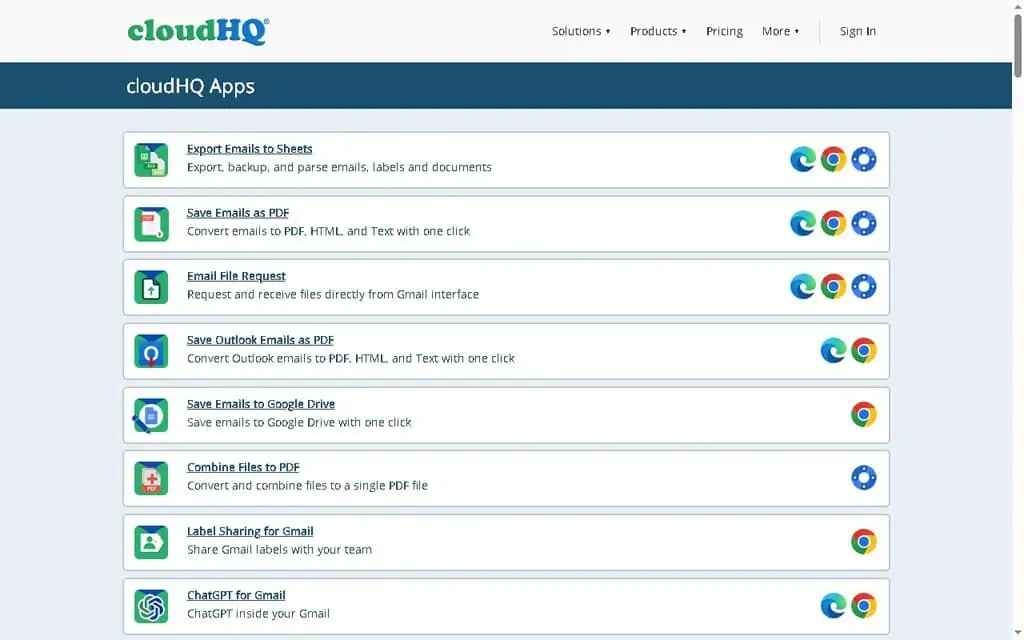
Every tool below links to its own product page, and the List price column is cloudHQ’s own list price for lifting that tool’s limits, read from the offer data on its pricing page on 12 September 2026. Each one also has a free version, so treat the price as the cost of the useful tier rather than the cost of entry. Prices are per app: installing four tools means four line items, not one subscription. I used three of these for the month; the rest are described from their product pages and cloudHQ’s pricing data.
Email tracking and notifications
| Tool | What It Does | Worth It? | List price |
|---|---|---|---|
| Email Tracker | Real-time open, click, and attachment tracking with SMS alerts | Yes, the one to install first | $6.90 |
| Free Email Tracking Blocker | Blocks trackers and flags who is tracking you | Yes, privacy win | $4.99 |
| Mobile Text Alerts for Email | SMS alerts for urgent or VIP emails | Niche but useful | $14.90 |
| Email Reply Status | Monitors whether recipients replied | Minor helper | $4.99 |
The Email Tracking Blocker is the rare tool that fights the same tracking the company’s own tracker enables. Installing both is oddly logical: track your outbound, block inbound surveillance.
Save, export and backup
| Tool | What It Does | List price |
|---|---|---|
| Save Emails as PDF | Convert messages or whole labels to PDF, HTML, or text | $14.99 |
| Export Emails to Sheets | Parse and export emails and metadata to Google Sheets | $69.90 |
| Export Emails to Google Docs | Consolidate emails into a Google Doc | $14.90 |
| Save Emails to Google Drive / Dropbox / OneDrive / SharePoint / Egnyte | One-click email archiving to cloud storage | $9.99 to $19.99 each |
| Save and Backup My Emails | Bulk backup and archive of your mailbox | $14.99 |
| Backup Emails to Amazon S3 | Archive email to AWS storage | $19.99 |
This is the strongest category overall, and it reflects cloudHQ’s roots in cloud sync and backup. If your job involves getting email out of Gmail and into a system of record, cloudHQ has a tool for almost every destination. Export Emails to Sheets is the sleeper for anyone who wants to turn order confirmations or leads into a spreadsheet automatically.
Composition, templates and formatting
| Tool | What It Does | List price |
|---|---|---|
| Email Templates | Reusable, shareable Gmail templates with variables | $9.90 |
| Gmail Snippets | Keyboard-shortcut phrase insertion | $4.99 |
| HTML Editor for Gmail | Code and send HTML email from Gmail | $4.99 |
| Auto BCC for Gmail | Auto-add BCC or CC to specific emails (great for CRM logging) | $7.90 |
| Formatted Subject Lines | Bold, italics, underline, strikethrough in subjects | $4.99 |
| Email Signature Generator | Signature builder and templates | $1.99 |
| MailChimp / HubSpot Templates in Gmail | Pull marketing templates into Gmail | $9.90 each |
| Tables, GIFs, Buttons, URL Link Preview, YouTube embed | Rich content add-ons for email body | $3.90 to $4.99 each |
Auto BCC is one of the most practical tools here. If your CRM logs email via a BCC address, Auto BCC adds it automatically so you never forget. The rich-content tools (GIFs, tables, buttons) are fun but inessential.
Sending, scheduling and outreach
| Tool | What It Does | List price |
|---|---|---|
| Schedule Email | Send at a future date and time | $4.99 |
| Snooze Email | Remove from inbox, return later | $4.99 |
| Pause Gmail | Hold incoming mail until you are ready | $4.90 |
| MailKing | Mass emailing and mail merge from Gmail | $14.99 |
| Auto Follow Up | Automated follow-up sequences | $14.99 |
| Meeting Scheduler | Calendar booking links inside Gmail | $6.99 |
| Multi Email Forward | Forward or migrate many emails at once | $14.90 |
| Bulk Reply | Reply to multiple emails at once | $4.90 |
Sharing and collaboration
| Tool | What It Does | List price |
|---|---|---|
| Label Sharing for Gmail | Share labels as a lightweight shared inbox | $19.80 |
| Share Emails via URL Link | Create secure shareable links to emails | $4.99 |
| Secure Document Sharing | Password-protected, expiring file shares | $4.90 |
| Copilot for Gmail | A simple CRM inside the inbox | $4.99 |
AI and automation
| Tool | What It Does | List price |
|---|---|---|
| ChatGPT for Gmail | AI drafting and summarizing in Gmail | $4.90 |
| ChatGPT Sidebar / ChatGPT for Google | AI helper across Google products | $4.90 each |
| Gmail Auto Label | Auto-create filters and labels for contacts | $4.90 |
| Sort Gmail Inbox | Auto-categorize the inbox into labels | $4.99 |
| Document Parser | Extract structured data from documents | $69.90 |
PDF and file utilities
| Tool | What It Does | List price |
|---|---|---|
| Combine Files to PDF | Merge multiple files into one PDF | $4.90 |
| Website to PDF | Save web pages as PDF | $4.90 |
| Attach / Download Files as PDF | Convert any file to PDF in Gmail | $4.90 each |
| Convert PDF to MS Word | PDF to Word conversion | $4.90 |
| PDF Encrypt / PDF Redact | Password-protect or redact PDFs | $9.90 to $14.90 each |
| Screenshot Tool | Capture, annotate, and share screenshots | $4.99 |
Inbox experience and niche tools
This is where the catalog gets long-tail: Notes for Gmail, Rename Email, Gmail Tabs, Highlight Emails, Resize Sidebar, Gmail Inbox Zero, Display Email Time, Email Sender Icons, Conversation Thread Reversal, Good Morning new tab, Email Zoom Text Reader (an accessibility win for low-vision users), Gmail Time Tracker, Online Polls and Surveys, Video Email, Screencast Recording, eCards, and Get My Receipts.
Most of these are single-purpose extensions that solve one specific annoyance, and you will never use most of them. If you have a weirdly specific Gmail frustration, cloudHQ probably built a fix for it. The Email Zoom Text Reader stands out as an accessibility tool most companies would never bother to build.
What cloud services does cloudHQ sync and back up?
cloudHQ syncs and migrates between roughly two dozen services across five categories: consumer and business cloud storage, email and contacts, note apps, and a few business systems. This is the original cloudHQ product, it predates the Gmail extensions by years, and it is the part you pay a recurring fee for. Most reviews skip it entirely, which is why people arrive expecting a Gmail toolbox and find a sync bill.
| Category | Services | Notes |
|---|---|---|
| Consumer cloud storage | Google Drive, Dropbox, OneDrive, Box, Egnyte, SugarSync, Yandex Disk, Amazon Cloud Drive | Free tier syncs the free versions of these |
| Business cloud storage | Dropbox Business, Dropbox Professional, Google Workspace Drive, Microsoft 365 OneDrive, Box Starter, Box Enterprise, SharePoint | Premium plan and above |
| Email and PIM | Gmail, Google Workspace Mail, Microsoft 365 Mail, Outlook.com, Yahoo Mail, iCloud Mail, FastMail, Google and Microsoft 365 Contacts and Calendars | Mail sync is the part most people miss |
| Notes | Evernote, Evernote Premium, OneNote | Free and premium tiers both covered |
| Business systems | Salesforce, Amazon S3, Basecamp | Business plan; S3 is the archive destination |
Three things about how it works are worth knowing before you price it. It is continuous, not a nightly job: cloudHQ watches both sides and replicates changes as they happen, which is the difference between a sync tool and a backup tool and is why it runs on cloudHQ’s servers rather than your machine.
It is bidirectional by default, so a deletion on one side propagates to the other unless you set up a one-way replication, which is the single most common way people lose data with any sync product. And the free tier syncs only the free versions of each service, throttles transfers and caps files at 150 MB, so a Google Workspace or Dropbox Business account needs the $149-per-year premium plan regardless of how little you are moving.
For a one-off migration between two clouds, cloudHQ billed monthly is a reasonable way to buy a week of transfer and then cancel, which is what cloudHQ itself recommends on its pricing page. For continuous cross-cloud backup, it competes directly with MultCloud and with each vendor’s own native backup, and the case for it rests on breadth of connectors rather than on price. For real disaster recovery on Google Workspace or Microsoft 365, a dedicated backup vendor with point-in-time restore is the better instrument, because bidirectional sync replicates a mistake faithfully to both sides.
Is cloudHQ free? What it really costs
Every headline cloudHQ Gmail tool has a free version you can install without paying, which is the part of the marketing that is true. But cloudHQ publishes 98 separate offers in the structured data behind its own pricing page, and exactly three of them cost nothing: Label Manager, Good Morning New Tab, and the free tier of the sync product. Everything else has a price attached the moment you want the limits lifted. The individual app sites do not print that number anywhere, which is why so many people arrive believing the whole suite is free.
The separate cloud sync and backup product is where the recurring pricing lives:
| Plan | Price | Best For |
|---|---|---|
| Free | $0 | Saving emails to cloud storage, basic sync with throttling and 150 MB file limit |
| Premium | $149 per year, single user | Premium cloud accounts (Dropbox Business, Google Workspace, Microsoft 365, Box) and business cloud sync |
| Business | $399 per year for 3 users, +$79 per extra user | Admin integration and phone support |
| Enterprise | Custom | Unlimited sync, volume discounts, full support |
There is a 15-day free trial on paid plans, and a 30-day money-back guarantee on annual plans. One wrinkle before you budget: the plan page prints a euro glyph next to each figure, while the structured data behind that same page declares USD on every one of its 98 offers, and fetching it from a US connection returns dollars. The numbers do not change, the symbol does, so confirm the currency at checkout rather than from the pricing page.
One or two free tiers will cost you nothing, and three or four upgrades quietly add up to more than the single specialist tool you were avoiding. Email Tracker at $6.90 plus Label Sharing at $19.80 plus Templates at $9.90 is $36.60, against $19.99 for Mailsuite doing the tracking part properly.
If you need serious cross-cloud backup and migration, the $149-per-year premium plan is reasonable but competes with focused tools like MultCloud. For more pay-once options that cut recurring software costs, browse the best AI lifetime deals on ZPlatform.
What does each cloudHQ app actually cost?
Individual cloudHQ apps run from $1.99 to $69.90, the median app is $4.99, and only two of the 96 Gmail tools are free outright. That answer does not exist on any of cloudHQ’s own app sites, which show a feature list and an Upgrade button and no number at all.
The figures below come from cloudHQ’s own machine-readable pricing markup, the schema.org offer data embedded in its pricing page, read on 12 September 2026. It is the vendor’s own price list, not an estimate. cloudHQ does not print a billing period next to each app, and the page carries a monthly and annual toggle, so treat these as the list price per app and confirm the period at checkout. Gartner’s vendor profile describes the same model as billed either monthly or annually.
| App | List price | Notes |
|---|---|---|
| Email Signature Generator | $1.99 | Cheapest paid app in the catalogue |
| Gmail Tabs, Display Email Time, Highlight Emails | $2.99 | The small inbox tweaks |
| ChatGPT for Gmail | $4.90 | The AI drafting layer |
| Gmail Snippets, Snooze Email, Schedule Email | $4.99 | The modal price: 28 apps sit here |
| Email Tracker | $6.90 | The tool most people install cloudHQ for |
| Meeting Scheduler for Gmail | $6.99 | Calendly-style booking inside Gmail |
| Gmail Email Templates | $9.90 | Saved replies and merge fields |
| Save Emails as PDF | $14.99 | Bulk Gmail to PDF export |
| MailKing, Auto Follow Up for Gmail | $14.99 | Mail merge and sequences |
| Label Sharing for Gmail | $19.80 | The shared-inbox feature |
| Save Emails to Google Drive | $19.99 | Per-destination, and Dropbox and S3 are separate |
| Export Emails to Sheets, Document Parser, Get My Receipts | $69.90 | The three most expensive, all data-extraction tools |
| Label Manager, Good Morning New Tab | $0 | The only two genuinely free apps |
The shape of the catalogue matters more than any single row. Of the 98 offers, 59 sit under $5, 26 fall between $5 and $15, 10 are $15 or more, and three are free. So the suite is cheap per app and expensive per workflow, because cloudHQ splits jobs other vendors bundle: saving email to Google Drive, to Dropbox, to Box, to OneDrive, to SharePoint and to Salesforce are six separate products with six separate prices, not one export feature.
Decide the one or two jobs you need, check whether the free tier of those specific apps covers your volume, and only then compare the upgrade price against a specialist. For a single job a specialist usually wins. For three or four unrelated jobs cloudHQ usually wins, which is the real case for the suite and is a narrower case than its own marketing makes.
Is cloudHQ safe? Security and privacy
cloudHQ is reasonably safe for a free Gmail extension suite, because it connects through Google’s official OAuth and OpenID Connect protocols rather than ever seeing your password, encrypts all traffic with SSL, and states that it does not permanently store your files on its servers. That covers the security basics most users worry about.
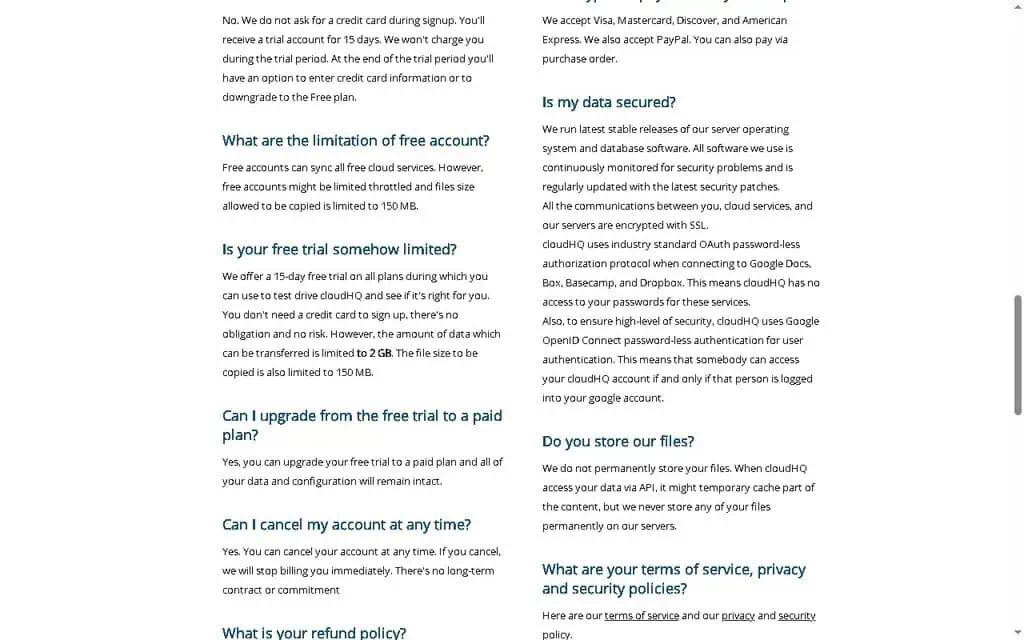
cloudHQ says it accesses your data via the API temporarily and does not keep your files permanently on its servers. Stored data is protected with 256-bit AES encryption, and cloudHQ states GDPR compliance for handling personal data of EU users. Because the login is Google’s, not cloudHQ’s, your own Google two-factor authentication covers cloudHQ access too.
To cloudHQ’s credit, its security page documents several things plenty of larger vendors do not: a per-account AES-256 key held in an encrypted wallet whose password is not stored on the server, regular penetration testing and daily vulnerability scanning including by outside firms, SSH restricted to RSA keys with only ports 22 and 443 open, alerting when an account is accessed from an unexpected country, and an internal rule forbidding staff from viewing customer file names or contents without explicit permission, with access logged and audit logs available on request. That is a more specific security posture than most Gmail extension vendors publish.
The gap is external verification, not effort. I could not find a published SOC 2 report, a formal vulnerability disclosure or bug-bounty program, or a detailed breach history page. A long-running company with no widely reported breach is reassuring, and it is not the same as certification. Two details on cloudHQ’s own security page are worth reading carefully before you quote it to anyone.
The page lists ISO 27001, ISO 27017, ISO 27018, SOC 1, SOC 2, SOC 3, FedRAMP ATO and PCI DSS v3.2, and at a glance that looks like a fully certified vendor. Read the sentence around the list and those certifications are attributed to cloudHQ’s infrastructure, meaning the cloud provider hosting it. They are the hosting provider’s audits, not audits of cloudHQ, and a procurement reviewer who pastes that list into a vendor questionnaire is making a claim cloudHQ did not quite make.
The same page also still advertises Safe Harbor self-certification for EU data. The Court of Justice of the European Union invalidated Safe Harbor in 2015, its replacement Privacy Shield was invalidated in 2020, and the current arrangement is the EU-US Data Privacy Framework, which the page does not mention at all. That is not evidence of bad practice, but it does mean this page has not been revised in about a decade, and if you operate under EU law you should ask cloudHQ directly which transfer mechanism it relies on today. Both checked 12 September 2026.
My recommendation: for individuals and small businesses, the security model is fine, and revoking access is one click away. For regulated industries (healthcare, finance, legal), run it past your IT or compliance team first and review the exact permissions each extension requests before granting them. Always read the OAuth consent screen rather than clicking through it; Google’s own account permissions page is where you audit and remove access at any time.
Is cloudHQ a legitimate company?
Yes. cloudHQ is a real, independently verifiable US business: cloudHQ LLC, a 25-person company that publishes a street address and a support phone number, has shipped continuously since the early 2010s, is listed on the Google Workspace Marketplace, and carries product profiles on G2 and Gartner Peer Insights. It is privately held, not a venture-backed brand chasing a quick exit, not a shell, not a rebrand, and not owned by Google despite how tightly the tools integrate with Gmail.
The reason people ask is structural rather than suspicious. cloudHQ ships its apps under about a hundred separate single-purpose domains, so you install something from free-email-tracker.com or gmail-label-sharing.com, then get an OAuth prompt naming cloudHQ, a company you have never heard of, asking to read and send your email. That sequence looks exactly like a phishing flow even though it is not one. Checking that the OAuth consent screen names cloudHQ, and that the extension’s Chrome Web Store listing shows cloudHQ as the publisher, is the right instinct, and in this case it resolves cleanly.
On ratings, read the sources separately rather than averaging them. cloudHQ’s own site embeds a 4.8 out of 5 aggregate rating from 21 reviews in its page markup, which is self-reported. Independently, G2 puts cloudHQ at 3.9 out of 5 across 27 reviews, and Gartner Peer Insights carries a single rating, too thin to read anything into.
The shape of the G2 ratings says more than the average does. Of the 27 reviews, 70% are five-star and 11% are four-star, and the remaining 18% are one-star, with nothing at two or three. That is a product people either get on with or bounce off hard, which fits a suite of roughly a hundred narrow tools of uneven depth. Read the one-star reviews rather than the average, because the question that matters is whether the specific app you want is one of the good ones. The five-star reviews are short and generic enough to be worth discounting slightly, which is a normal artefact of vendor review programmes.
On longevity, the business model is the reassurance. The free Gmail tools are funded by the paid sync and migration product, so they are a customer-acquisition channel with a decade of revenue behind them rather than a side project that disappears after 18 months like many single-founder Gmail extensions. The risk is not that cloudHQ vanishes; it is that any individual app of the hundred gets quietly deprioritised, which is a normal hazard of a catalogue this wide. Checked 12 September 2026.
Solo users and small teams, not procurement: who cloudHQ fits
cloudHQ is best for:
- Solopreneurs and freelancers. Email tracking, templates and PDF export with no monthly fee, where competitors charge $8 to $15 a month each.
- Teams of two to five sharing an address. Label Sharing replaces a per-seat shared-inbox subscription with a Gmail label.
- Anyone archiving email for records or compliance. Bulk label-to-PDF export with attachments is the strongest tool in the suite.
- Budget-conscious businesses willing to trade polish for price. Each focused competitor is more refined, and each one costs money.
- People with one weirdly specific Gmail frustration. Somewhere in the catalog there is probably a free fix for it.
cloudHQ is not for:
- Enterprises and regulated industries. There is no published SOC 2 report and no formal vulnerability disclosure programme, which procurement will flag immediately.
- Teams that want one polished app. The suite is a dozen separate extensions with a dozen sets of settings.
- Heavy cold-email senders. MailKing does not change Gmail’s sending limits or give you deliverability infrastructure.
- Anyone who wants a minimal Gmail. In-product prompts to install and upgrade more tools are constant.
- Large support teams. Label Sharing has no ticketing, no SLAs and no round-robin assignment; a 15-person support team will outgrow it.
Where cloudHQ breaks down
- Tool sprawl is the defining flaw. Every feature is a separate extension with its own OAuth grant, its own settings and its own toolbar button. Install ten and Gmail becomes cluttered, which is the most common way people end up blaming the suite for a problem they created.
- Broad OAuth scopes are required for the useful tools. Read, compose, send and permanently delete is the scope a tracker needs, and granting it to a third party is a real decision, not a formality.
- Pixel tracking produces false opens. A client on Apple Mail Privacy Protection registered an open the instant my email landed. Corporate gateways pre-load or block pixels entirely. Treat open data as a signal, never as proof, on any pixel tracker.
- Free-tier throttling on bulk jobs. My 40-email export ran as a background job rather than inline. Five to ten emails is instant; ten thousand means waiting or upgrading.
- Label Sharing has no collision locking. Two people can reply to the same message unless you agree a manual convention, as we had to.
- Dual pricing confuses buyers. The Gmail apps and the sync product price like different companies, and the sync side shows a euro symbol even for US buyers.
- The upgrade nudges never stop. Install three or four extensions and each one brings its own settings and in-product prompts to upgrade or install more tools. It is not malware-grade nagging, but if you value a minimal Gmail it grates.
How to remove cloudHQ from Gmail
To remove cloudHQ from Gmail, uninstall the cloudHQ Chrome extension from your browser, then revoke cloudHQ’s access in your Google account permissions page so it can no longer access your data. Doing both steps fully disconnects it.
- Remove the Chrome extension. Right-click the cloudHQ extension icon in your browser toolbar and choose Remove, or go to your browser’s extensions page (chrome://extensions), find the cloudHQ tool, and click Remove. Repeat for each cloudHQ extension you installed.
- Revoke account access. Go to your Google account permissions page at myaccount.google.com/permissions, find cloudHQ in the list of connected apps, click it, and choose Remove Access. This cuts off the OAuth token so cloudHQ can no longer reach your inbox even though the extension is gone.
- Cancel any paid plan. If you upgraded to a premium sync plan, cancel from your cloudHQ account settings to stop billing.
A lot of people forget step two, which is the important one. Uninstalling the extension stops the buttons from appearing, but the access token can remain valid until you revoke it. The same two-step cleanup applies to any Gmail extension you stop using.
Specialists that beat cloudHQ at one job
Mailsuite, GMass, MultCloud and Gmail’s own features each cover one slice of the suite. Pick Mailsuite when tracking is the only job, GMass for mail merge and sequences, and MultCloud for cross-cloud sync, where cloudHQ charges $149 a year with no lifetime option.
| Alternative | Price | Pick it instead when |
|---|---|---|
| Mailsuite (formerly Mailtrack) | Free plan with unlimited tracked emails and a promotional signature; Mailtrack $6.99 per month or $35.88 per year; Mailsuite $19.99 per month or $119.90 per year | Email tracking is the only job and you want a single polished tool rather than a suite |
| GMass | Standard $29.95 per month ($20 billed annually), Premium $39.95, Professional $59.95; team plans from $175 per month for 5 users | Mail merge and outreach sequences are the core need and MailKing’s ceiling is too low |
| MultCloud | Free with 5 GB monthly traffic; $19.99 per month for 100 GB, $59.99 per year for 1,200 GB, $119 per year unlimited, $249 one-time lifetime | You only want the cross-cloud sync and migration side, where cloudHQ charges $149 per year with no lifetime option |
| Native Gmail features | Free | You need scheduling, snoozing or basic templates only, all of which Gmail already does without granting anyone inbox access |
Beyond those four, the map below names a specialist for each job cloudHQ covers, and the top Gmail tool alternatives go deeper on each need.
| Need | cloudHQ Tool | Strong Alternative |
|---|---|---|
| Email tracking | Email Tracker (free) | Mailsuite (formerly Mailtrack), Yesware |
| Shared inbox / CRM | Label Sharing, Copilot | Streak, Drag, Hiver |
| Scheduling and snooze | Schedule Email, Snooze, Meeting Scheduler | Boomerang, Mixmax, Calendly |
| Mail merge | MailKing | GMass, YAMM (Yet Another Mail Merge) |
| Cloud sync and backup | cloudHQ Sync | MultCloud, rclone |
Each specialist is more polished at its one job and charges monthly for it. cloudHQ’s argument is consolidation: decent versions of all of these from one provider. A tracker, a scheduling tool and a shared-inbox app run roughly $40 a month combined, which is $480 a year, and cloudHQ’s free tiers cover all three with less polish. For a broader shortlist of inbox and productivity software, see the best AI tools for business roundup.
cloudHQ review verdict: buy, wait, or skip
Verdict: buy the free tools, wait on the paid sync product unless cross-cloud migration is specifically your problem.
The case rests on what the free tiers did in my month: three tools replaced roughly $35 to $40 a month of subscriptions and cut proposal follow-up from about three days to under one. It weakens the moment you start paying per app. Upgrading the tracker, Label Sharing and Templates costs $36.60, which is more than Mailsuite’s $19.99 for doing the tracking part properly, so the suite only wins while the free limits cover your volume or you need three or four unrelated jobs from one vendor.
Treat cloudHQ as a toolbox, not a product. The mistake is installing ten extensions in an afternoon, drowning Gmail in buttons, and then blaming the suite for the clutter. Identify the one or two jobs you need solved, install only those tools, and ignore the other 88.
Your first step: install the cloudHQ Email Tracker, send one real email with tracking on, and see if knowing when it gets opened changes how you follow up. For more tested verdicts on AI and productivity tools before you build your stack, get the weekly ZPlatform AI deal alerts.
Tools do not grow your business by themselves. They only help you do the right work, faster. (Alston Antony)
Want more free AI productivity tools? Our guide to the 108 best free AI tools ranks 108 of them by real traffic, with each free plan and limit.
Pricing and company details: see the cloudHQ profile.
Related Posts

I tested AgainstData on 355 pages of Gmail data. Bulk unsubscribe, personal data deletion requests, pricing, and whether...

AI-Text-Humanizer.com took a 132-word ChatGPT paragraph from 100% AI to 0% on ZeroGPT but flattens your voice. Buy the $...
AIscan24 is a free, no-signup AI detector: it caught pure ChatGPT text at 100% but scored my handwritten paragraph 80%. ...
Honest Aithenticate review after hands-on testing. Does this AI disclosure badge tool meet EU AI Act requirements? Prici...

My hands-on Answer Socrates review covering all features, free plan limits, pricing, and how it compares to AlsoAsked. I...

I’ve spent $4,200 on 118 AppSumo lifetime deals over 5 years. Here’s my honest review: what works, what fails, and wheth...