

Verdict: Buy
What I like
- Very beginner-friendly with almost no learning curve
- Fast workflow: paste text, generate, tweak, publish
- Multiple entry points (Advanced Prompter, Text to Video, Generative AI, ClipMaker, Image to Video, Audio to Video)
- Strong for faceless content creation with character consistency across scenes
- Multi-voice storytelling for dialogue-driven videos
- Supports six languages
- Free plan available to test before paying
- Backed by Animaker, a mature established company
- Solid G2 rating of 4.6/5 from 134 reviews
What is missing
- Outputs can feel templated and generic for bespoke brand needs
- Fine-grain editing is limited, no frame-by-frame control
- Pricing structure is complex with per-product tiers and per-export fees
- Extra downloads cost around $5 per export on lower tiers
- Lifetime deal buyers report newer Generative AI features not extended to older plans
- Lower AppSumo rating of 3.4/5 from 87 reviews
- Not suitable for professional animators needing frame-level control
TL;DR: Steve AI is a text-to-video and animation platform from Animaker that turns scripts, blog posts, prompts, and audio into finished videos in minutes. After testing it, my verdict is positive for one specific job: fast, beginner-friendly explainer and social videos. It is not a cinematic editing suite, and it does not pretend to be.
I will be honest with you about how I approach AI video tools. Most of them promise “Hollywood in one click” and hand you a slideshow with robotic narration.
So when I sat down to run this Steve AI review, my expectation was low. I have reviewed well over 500 SaaS tools, most of them in AI, marketing, and content creation, and the gap between a slick landing page and a usable product is usually a canyon.
Steve AI surprised me, and mostly in a good way.
This isn’t a press release. I will show you what the tool does well, where it falls short, what it actually costs (the pricing is more layered than it first looks), and exactly who should use it.
If you want a video generator that gets a watchable clip out the door today without an editing degree, this review is for you. If you want frame-by-frame cinematic control, I will tell you to look elsewhere before you waste a dollar, or read my CinemaDrop review if a full AI film studio is what you actually need.
Want the bigger picture first? See where this tool sits in our roundup of the best AI tools for creators and marketers.
What is Steve AI and who built it?
Steve AI is an AI video generator that converts text, scripts, blog posts, prompts, audio, and images into animated or live-action-style videos. It is built by Animaker, the same company behind the long-running Animaker video and animation platform, which matters more than people realize.
This is not a three-month-old startup selling a lifetime deal and vanishing. Animaker has been shipping video software for years, so the engine underneath Steve AI is mature.
The name itself is a small story. According to the team’s own explanation, “Steve” was chosen to feel casual and approachable, the everyday name that signals “you can do this too.” That positioning runs through the whole product. The interface is built so a complete beginner can paste a script and walk away with a video.
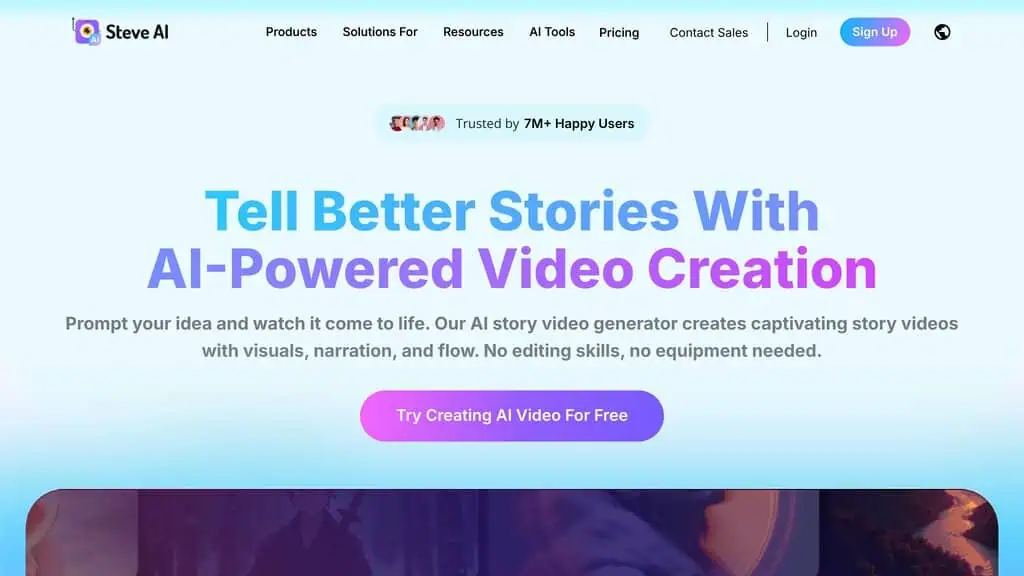
There are two core video styles, and understanding them early saves you confusion later. Animation mode builds cartoon-style explainer videos with characters, icons, and props. Live mode assembles stock footage and images into a more realistic clip. Both start from the same place: your words. You write or paste a script, pick a style, and Steve AI storyboards the scenes for you.
The platform supports six languages (English, Spanish, Portuguese, French, German, and Italian), which widens the audience well beyond English-only creators.
How does Steve AI actually work?
Steve AI works by taking a text input and automatically mapping it to scenes, visuals, characters, and a voiceover, then dropping the result into a simple timeline editor where you tweak anything you do not like. The workflow is genuinely fast: input, generate, adjust, publish.
Here is the part I respect. Most “AI video” tools force one rigid path. Steve AI gives you several entry points depending on what you already have:
- Advanced Prompter: helps you write a stronger prompt with AI assistance before you generate anything.
- AI Text to Video: paste a script or idea and it builds the video.
- Generative AI: creates fully AI-generated videos with character consistency across scenes.
- AI ClipMaker: produces short, studio-quality clips using Google’s Veo 3 model.
- Image to Video AI: adds motion and animation to a still image from a prompt.
- Audio to Video: turns a voice recording or podcast clip into a watchable video.
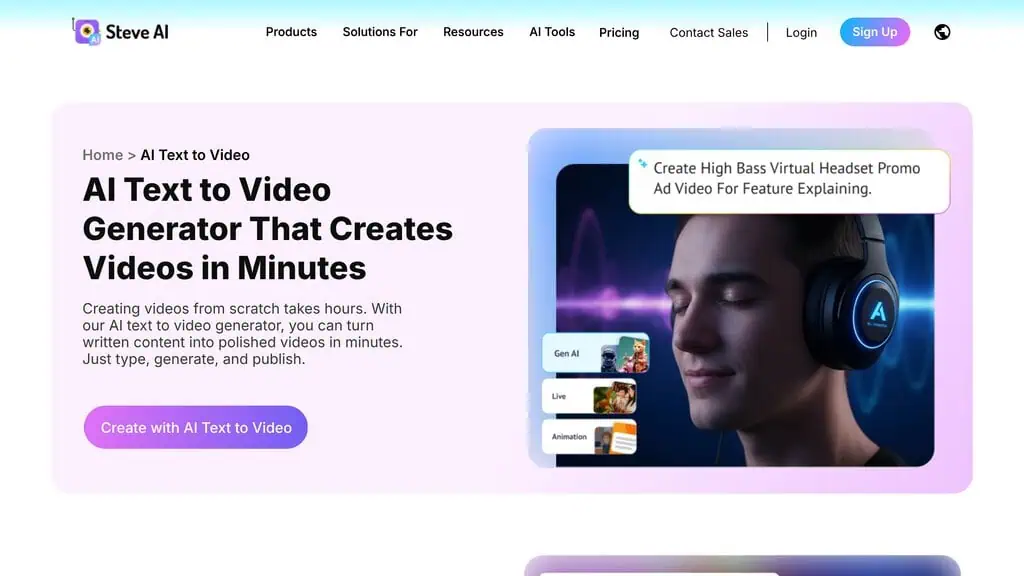
The first time I ran a script through the text-to-video flow, it picked the scenes, characters, and stock visuals on its own. About 70% of the choices were reasonable.
The rest I swapped in a couple of clicks. Changing a character, an action, or a background image is a click-and-replace job, not a tutorial-hunting nightmare. For someone who has fought with traditional editors, that speed is the whole point.
A quick scenario to make this concrete. Priya runs a small online course business and needs a 60-second explainer for her landing page.
She has no editor, no budget for a freelancer, and a launch on Friday. She pastes her sales copy into Steve AI, picks an animation template, swaps two characters to match her brand colors, and exports.
Total time: under 30 minutes. The video is not winning an award, but it is clear, on-brand, and live before her deadline. That is the exact problem Steve AI solves.
Ready to test the workflow yourself? Steve AI has a free plan, so you can build a clip before spending anything. Check our free AI tools hub for more no-cost options worth trying alongside it.
Is Steve AI easy to use for beginners?
Yes. Steve AI is one of the most beginner-friendly video generators I have tested, and ease of use is its single strongest selling point. The signup is quick, the dashboard funnels you straight into a guided “text to clip” flow, and there is almost no learning curve for a basic video.
This matches what I see in user reviews across the web. On G2, Steve AI holds a 4.6 out of 5 rating from 134 reviews, with 79% of those being five-star. The most common praise is exactly what I experienced: it is fast and it does not intimidate first-timers.
The guided flow uses presets and big obvious buttons instead of professional editing panels. You paste text, pick a style or template, generate, then tweak scenes on a simple timeline.
There is no node-based editing, no keyframe rabbit hole, and no manual yet. For the target user (a marketer, a solopreneur, a teacher, a faceless content creator), that is a feature, not a limitation.
If you have ever spent three hours learning a “simple” editor just to cut a 30-second clip, the contrast here is real, and my how-to guides cover the workflow end to end. Steve AI respects your time, and time is the most expensive thing a small creator owns.
What can you actually make with Steve AI?
Steve AI is built for short-form, high-volume content rather than long cinematic projects. The use cases the platform handles well are clear and practical:
- Explainer videos and product demos
- Tutorials and training videos
- Marketing and promotional clips
- YouTube Shorts and Instagram Reels
- Faceless content for creators who never want to appear on camera
- Education and healthcare training material
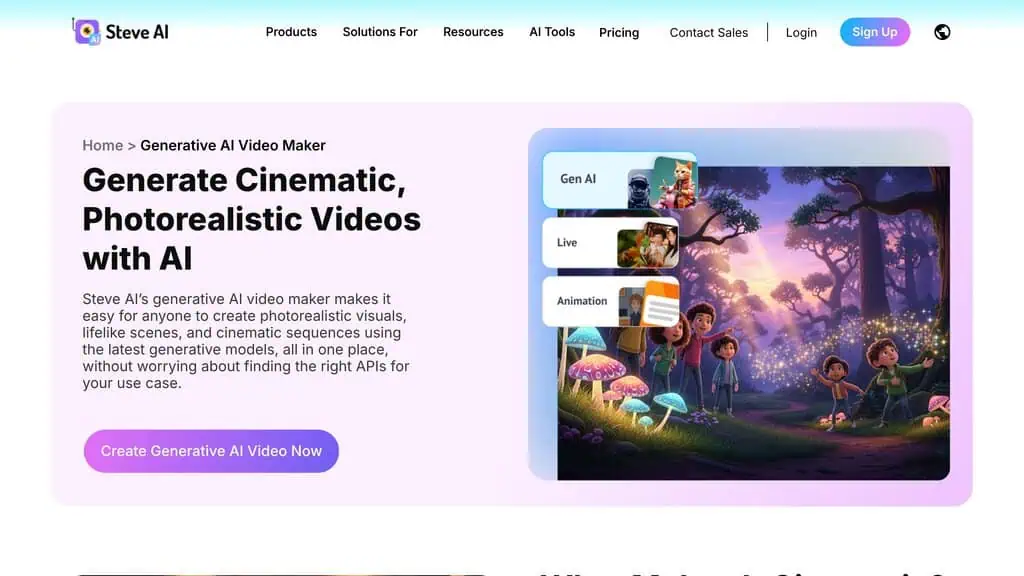
The faceless creator angle deserves a callout because it is genuinely useful. Consider Marcus, who wants to grow a YouTube channel about personal finance but hates being on camera.
With Steve AI he writes a script, picks AI voices for narration, and lets the platform generate animated scenes. He publishes three videos a week without ever filming himself. The Generative AI mode, with its character consistency across scenes, means his “host” character looks the same in every video, which builds a recognizable channel identity.
The multi-voice storytelling feature is another standout. You can assign different AI voices and avatars to different characters, which makes dialogue-driven explainers feel less flat. The voices are human-like enough for social content, though I wouldn’t use them for a high-stakes brand film without a real voiceover artist.
Steve AI pricing: What does it really cost?
Steve AI pricing is tiered and, honestly, more confusing than it should be, because different products (animation, generative AI, asset bundles) carry slightly different rates. There is a free plan, paid tiers that start in the teens per month, and an enterprise option for 4K and unlimited exports.
Here is the practical breakdown based on the current pricing page. Note that yearly billing is meaningfully cheaper than monthly, and exact numbers shift by product line.
| Plan | Price (approx.) | Best For | Key Limits |
|---|---|---|---|
| Free | $0 | Trying it out | Watermark, limited downloads, unlimited previews |
| Basic | $15 to $20/mo | Hobbyists | 720p resolution, low export count |
| Starter | ~$45/mo yearly ($60 monthly) | Solo creators | 1080p resolution, watermark-free |
| Pro | ~$60/mo | Active creators and small teams | 2K resolution, watermark-free, more exports |
| Generative AI | ~$99/mo | AI-video-first creators | 40 min AI video, 3,200 images, up to 4K |
| Enterprise | Custom | Teams needing 4K and scale | 4K, custom limits, support |
Extra video downloads are billed at around $5 per export on lower tiers, which adds up if you publish daily. That is the detail most reviews skip, and it is exactly the kind of “real cost” math I care about.
If you produce a lot of videos, price out the Pro or Generative AI plan rather than nickel-and-diming exports on Starter. It is also worth timing your purchase, since annual billing and seasonal sales can save on AI subscriptions versus paying month to month.
My honest take on value: the free plan is a legitimate way to test the tool, and the mid tiers are fairly priced against what you get. Just go in knowing the structure is layered, and verify the current number on the official Steve AI pricing page before you buy, since plans change.
Steve AI has also appeared as a lifetime deal on platforms like AppSumo and PitchGround in the past. If you prefer paying once instead of monthly, watch our AI lifetime deals hub for when deals like this resurface, and read our AppSumo review first so you understand how lifetime deal terms can change over time.
What Are the Downsides of Steve AI?
No honest review skips the weak spots, and Steve AI has a few you should know before buying. I want you to walk in with clear eyes, because that is the difference between a tool you keep and a refund request.
Outputs can feel templated. For high-end, bespoke creative work, the generated videos sometimes look generic. If your brand needs a distinctive cinematic style, you will end up editing heavily or combining Steve AI with a traditional editor. This is the most common criticism in independent hands-on reviews, and it is fair.
Fine-grain editing is limited. Steve AI is built for speed, not pixel-perfect control. There is no deep timeline editing, no custom rigging, and no frame-by-frame animation. That is a deliberate trade-off, but it is a real ceiling for advanced users.
The pricing structure is complex. As I covered above, the per-product tiers and per-export fees take effort to decode. A simpler pricing page would serve users better.
Lifetime deal history is mixed. Some early lifetime deal buyers on AppSumo have publicly complained that newer Generative AI features were not extended to their older plans, where Steve AI holds a more modest 3.4 out of 5 across 87 reviews. If you buy a lifetime deal, read the current terms carefully rather than assuming every future feature is included.
None of these are dealbreakers for the right user. They are the natural limits of a speed-first, beginner-first tool. Knowing them upfront is how you avoid disappointment.
How does Steve AI compare to other AI video tools?
Steve AI competes with tools like Synthesia, Pictory, and Vyond, but it occupies a distinct lane: animation-first, beginner-first video creation, unlike the multi-model generator I test in my Epochal review. It is not a one-to-one swap for any of them.
| Tool | Strength | Best For |
|---|---|---|
| Steve AI | Animation + fast text-to-video | Beginners, explainers, faceless content |
| Synthesia | Realistic AI avatars + talking heads | Corporate training, presenter videos |
| Pictory | Repurposing long video into clips | Editing existing footage |
| Vyond | Deep animation control | Professional animators |
If you want a realistic AI presenter reading a script, Synthesia is the stronger pick. If you mainly chop long videos into short clips, Pictory fits better.
But if you want to generate animated explainers and social videos from scratch, fast, without skills, Steve AI is one of the easiest on-ramps among AI video generators, though for TikTok-first clips my CreatOK review is the closer match. That clarity of purpose is why I land positive on it.
Who should use Steve AI?
Steve AI is best for creators and small teams who value speed and volume over cinematic polish. Based on my testing, here is the clean yes and no.
Use Steve AI if you are:
- A solopreneur or small business owner who needs explainer and marketing videos fast
- A faceless content creator building a YouTube or Reels channel without filming
- A marketer producing high-volume social clips
- A teacher or trainer turning lessons into watchable videos
- A beginner who wants results today, not after a course
Skip Steve AI if you are:
- A professional animator who needs frame-level control
- A brand that requires bespoke, cinematic visuals
- Someone who only edits existing footage rather than generating new video
Is Steve AI Worth It in 2026?
Yes, for the right person, Steve AI is worth it, and I am comfortable recommending it with clear conditions. It does exactly what it claims: it gets a clean, watchable video out of plain text in minutes, with a learning curve close to zero. For solopreneurs, faceless creators, marketers, and educators, that speed translates directly into published content and saved money.
The one insight I want to leave you with is this: the best AI video tool is the one that matches the job, not the one with the longest feature list. Steve AI is not trying to be a film studio, and you should not buy it expecting one.
Buy it because you need watchable videos at volume without hiring an editor. On that promise, it delivers.
Your concrete first step today: open the free plan, paste in a script you already have (a blog intro, a product description, anything), and generate one video. You will know within 20 minutes whether the output style fits your brand. That single test tells you more than any Steve AI review, including this one, and you will find every tool I put through this process in my review library.
The best AI tool is the one that fits your actual workflow, not the one with the best marketing page., Alston Antony
If you want more honest, tested verdicts like this one before you spend, browse all our AI tool deals or subscribe for weekly AI deal alerts so you catch the next Steve AI discount the moment it goes live.
Frequently Asked Questions
Is Steve AI free to use?
Yes, Steve AI has a free plan that lets you create videos with unlimited previews and access to stock media. The catch is that free exports carry a watermark and download limits. The free tier is a genuine way to test the tool before paying, but you will need a paid plan to publish watermark-free.
Is Steve AI good for beginners?
Steve AI is one of the most beginner-friendly video tools available. The guided text-to-video flow, simple timeline, and click-to-replace editing mean you can make a watchable video on your first try with no prior editing experience. This is its strongest feature.
Can Steve AI replace a professional video editor?
No, and it does not try to. Steve AI is built for fast explainer, animated, and social videos rather than cinematic production.
For high-end work, creators often combine Steve AI output with a traditional editor, and my best alternatives roundups map the other options by use case. For everyday short-form content, it stands on its own.
Does Steve AI have an app?
Steve AI runs in your web browser and is accessed through app.steve.ai, so there is no heavy software to install. You sign in and work directly online, which keeps it cross-platform and accessible from most devices.
Is my data safe with Steve AI?
Steve AI is backed by Animaker, an established video software company, and the platform follows standard security practices. As with any cloud tool, avoid uploading sensitive or confidential material you would not want stored on a third-party server.
What kind of videos can I make with Steve AI?
You can make explainer videos, tutorials, training clips, marketing and promo videos, YouTube Shorts, Instagram Reels, and faceless animated content. It supports both cartoon-style animation and stock-footage live videos, with AI voices and multi-voice storytelling for dialogue.
Liked this review? Pin ZPlatform as your Preferred Source.
Pinning us tells Google to make our hands-on AI reviews, verified lifetime deals, and founder interviews more likely to appear prominently for you in Top Stories and eligible AI Search experiences (AI Mode, AI Overviews). Set it once, no account needed on our end.
- 500+ AI tools tested with real budgets
- Verified deals - no dead affiliate links
- Editor: Alston Antony, 15+ years in SaaS & SEO
 Opens Google · takes 2 seconds
Related Posts

I tested AgainstData on 355 pages of Gmail data. Bulk unsubscribe, personal data deletion requests, pricing, and whether...
I ran AI-Text-Humanizer.com through ZeroGPT and AIscan24 with real before and after scores. Here is what works, what it ...
I ran five text samples through AIscan24, including two I wrote by hand. One scored 80% AI. Here is what this free detec...
Honest Aithenticate review after hands-on testing. Does this AI disclosure badge tool meet EU AI Act requirements? Prici...

My hands-on Answer Socrates review covering all features, free plan limits, pricing, and how it compares to AlsoAsked. I...
I’ve spent $4,200 on 118 AppSumo lifetime deals over 5 years. Here’s my honest review: what works, what fails, and wheth...